Page Navigation
How to Add, Update and Delete Testimonials
The Testimonials module lets users add, edit, and remove user feedback. Use this guide to manage testimonials: add new voices, update existing entries, upload profile images, and delete testimonials (single or bulk).
Overview
In this document you will know how to:
- Open the Testimonials module
- Add a new testimonial (name, designation, country, type, image, message)
- Update testimonial details and image
- Delete testimonials using bulk or direct delete actions
- Confirm success messages after each action
Add New Testimonial
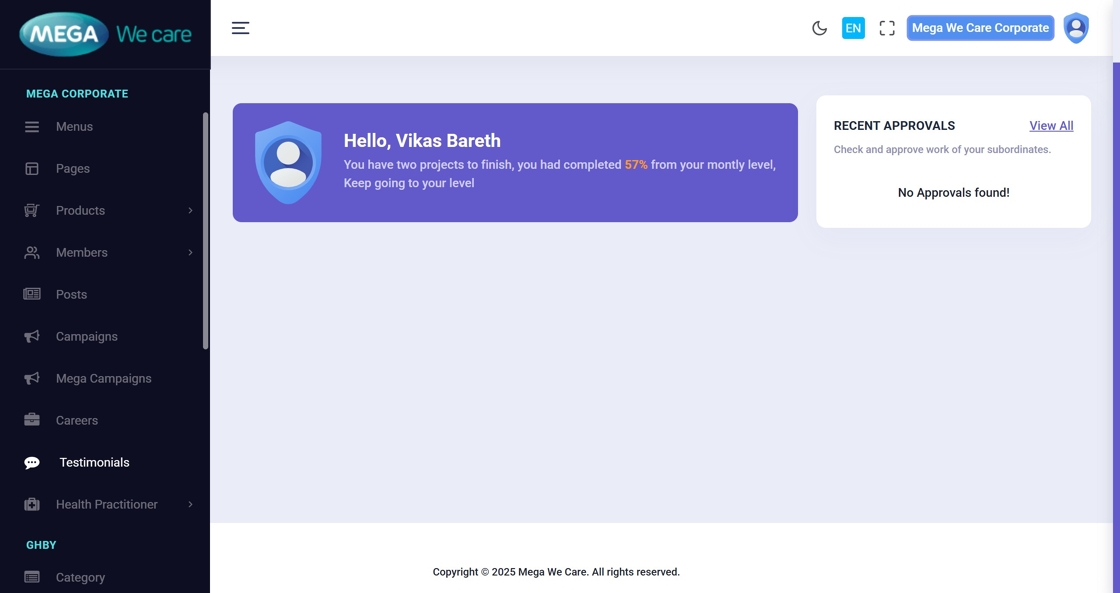
1. Open the Admin Dashboard
Go to the Admin Dashboard to start managing testimonials.
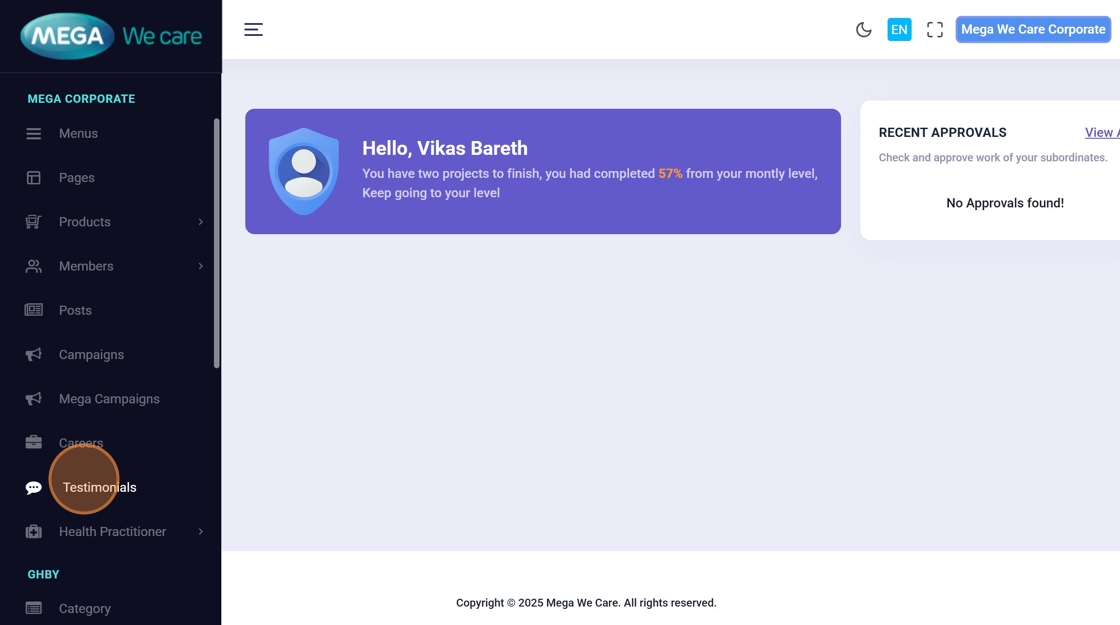
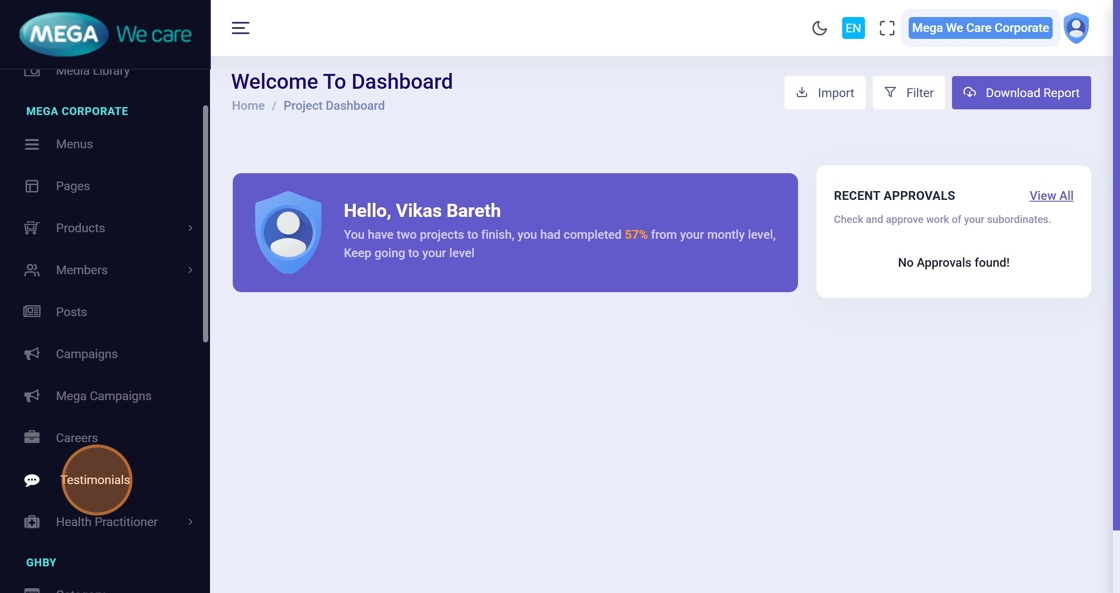
2. Click “Testimonials”
Select Testimonials from the left sidebar to open the testimonials list.
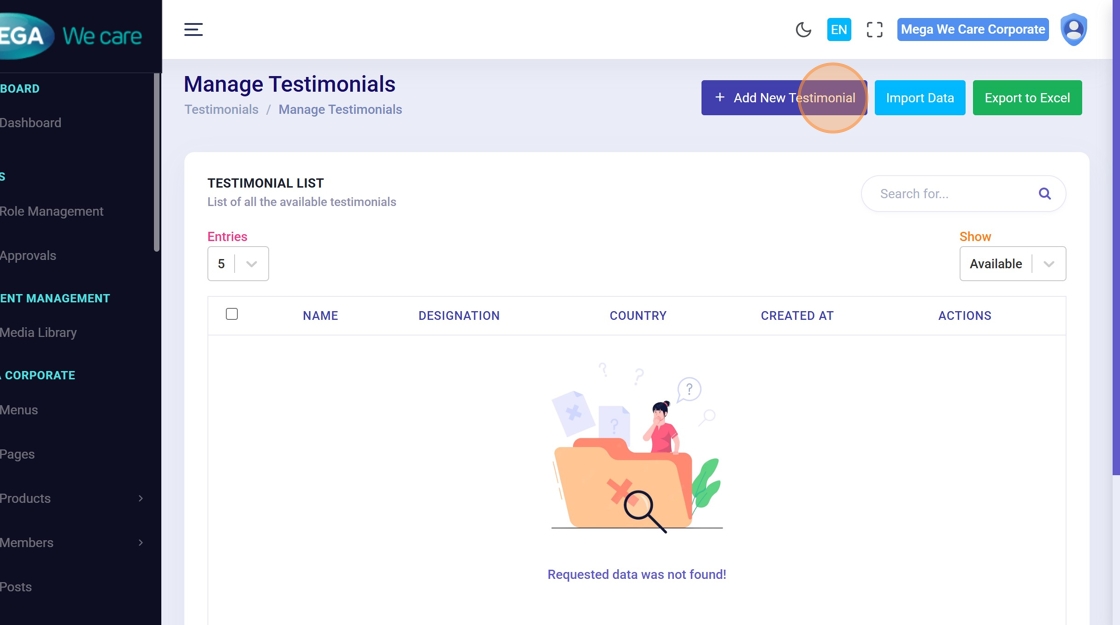
3. Click “Add New Testimonial”
Open the form to create a new testimonial entry.
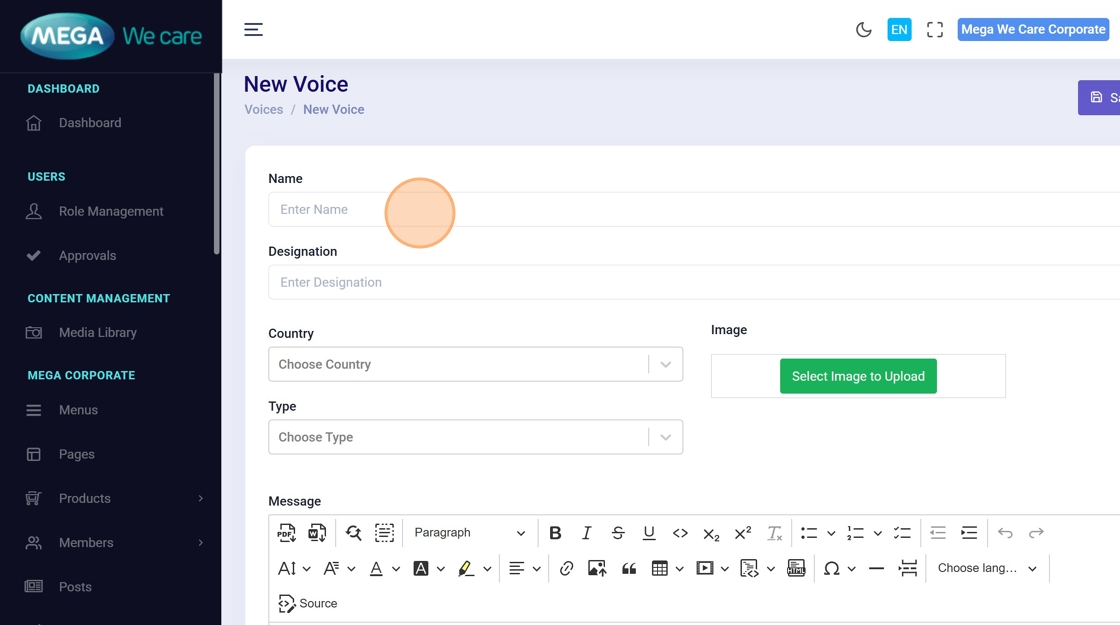
4. Enter Name
Click Enter Name and type the person’s name.
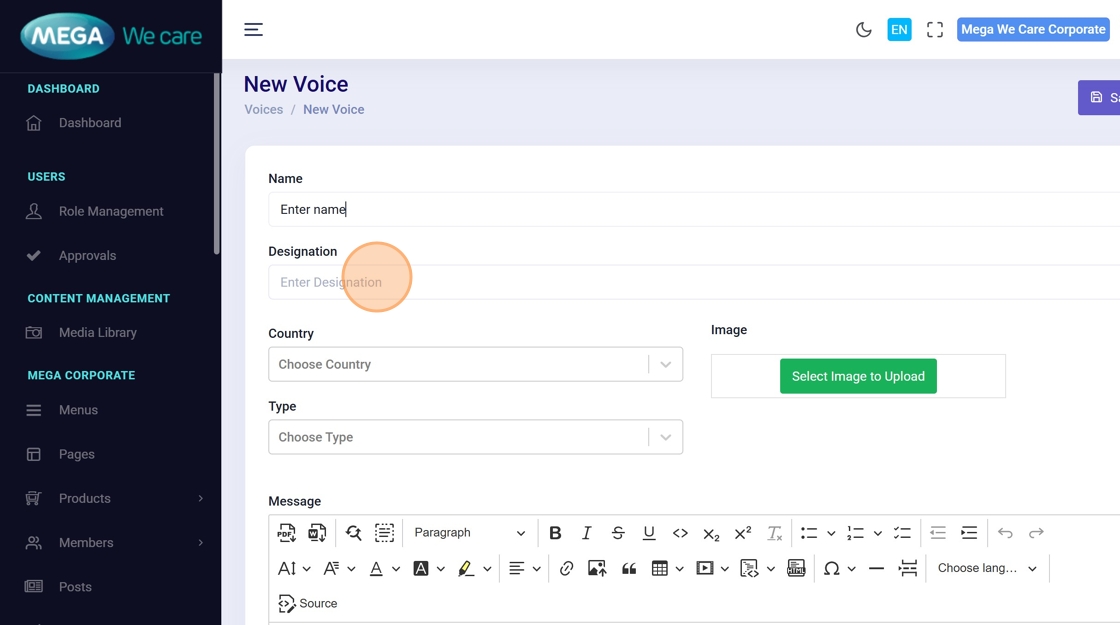
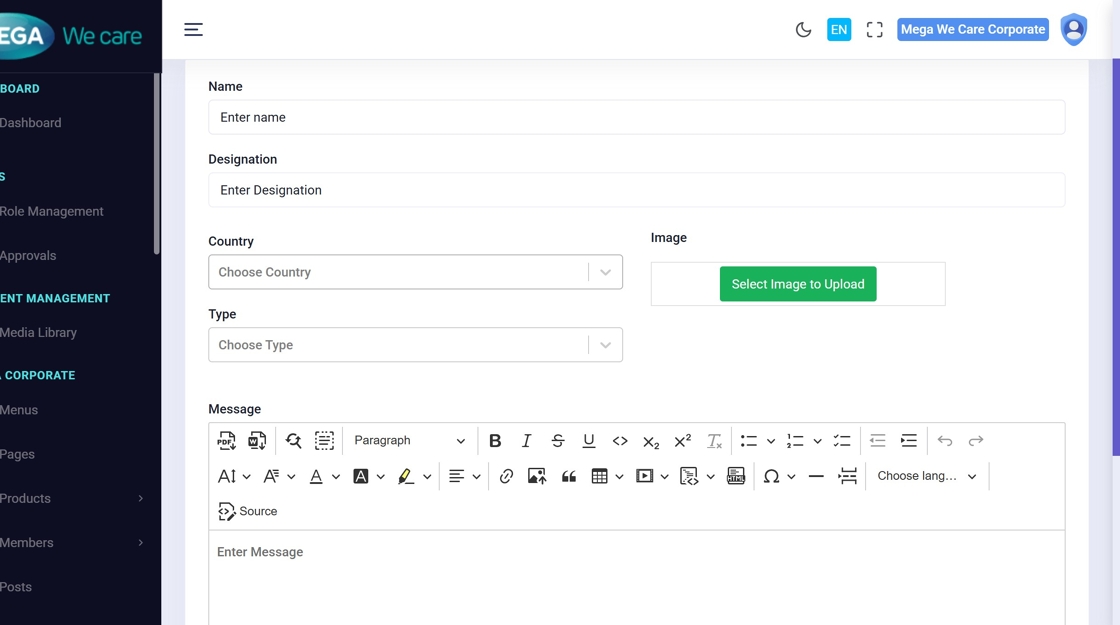
5–6. Enter Designation
Provide the person’s role or designation.
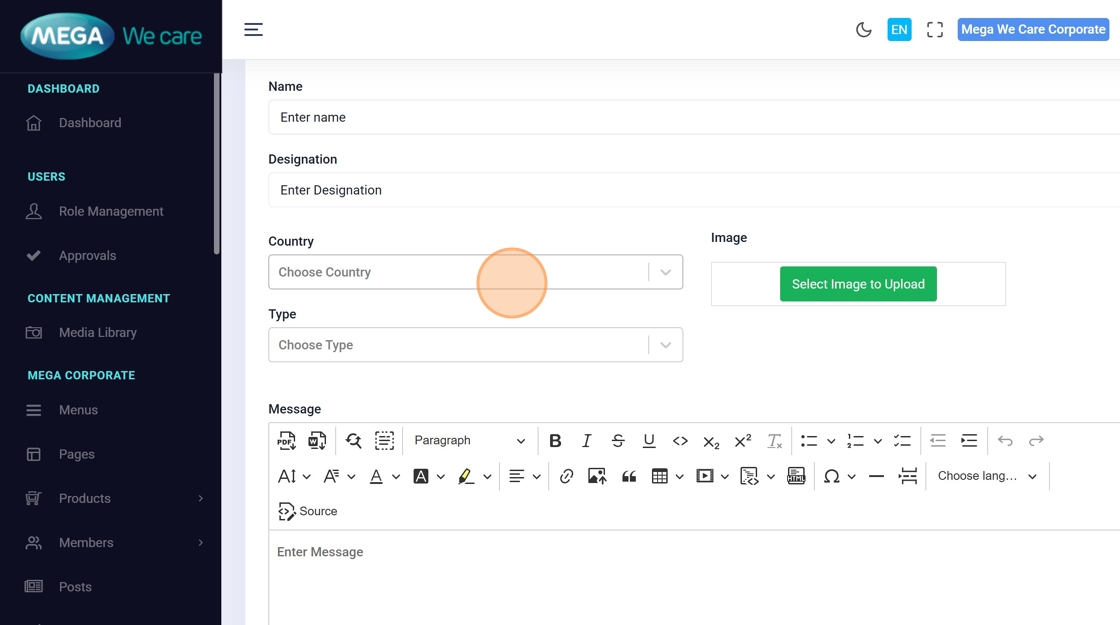
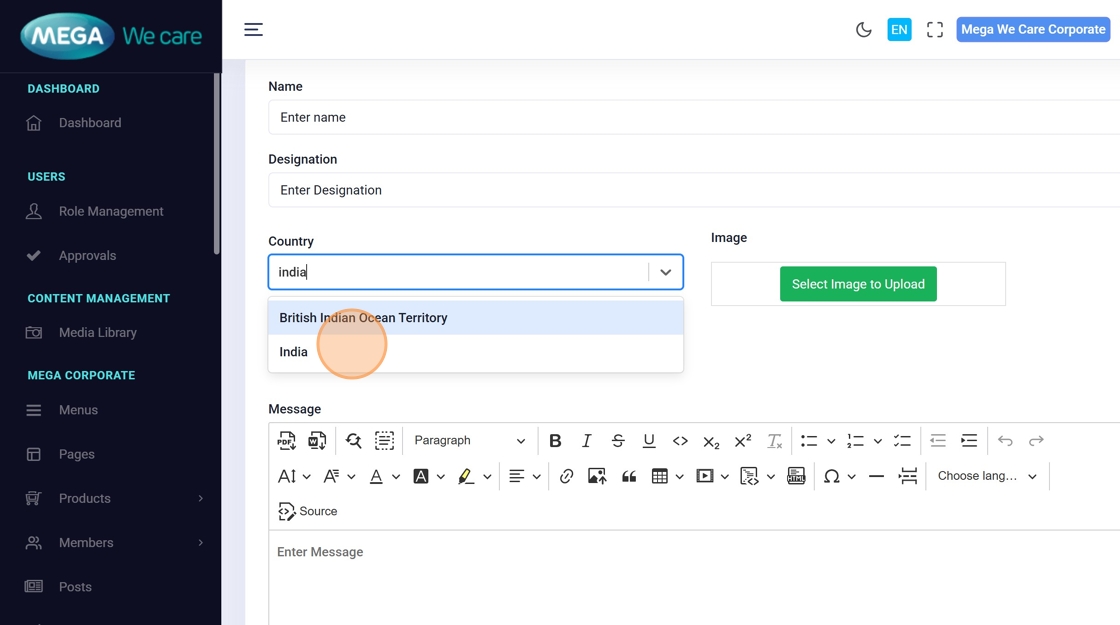
7–9. Select Country
Open the Country dropdown, search, and choose the correct country.
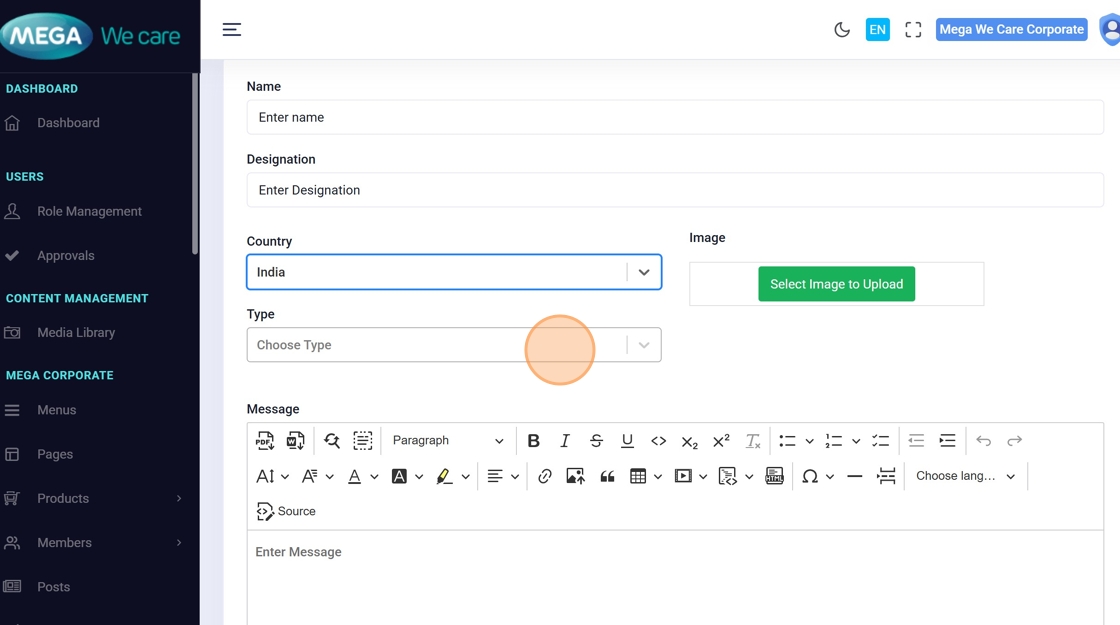
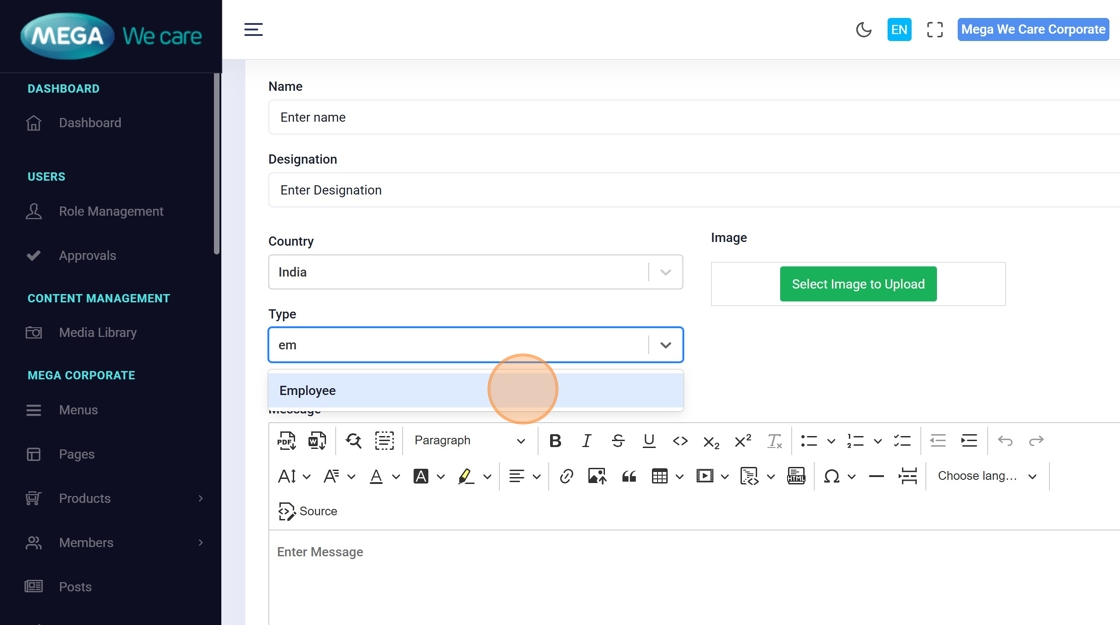
10–11. Choose Testimonial Type
Use the Type dropdown to pick the testimonial category/voice.
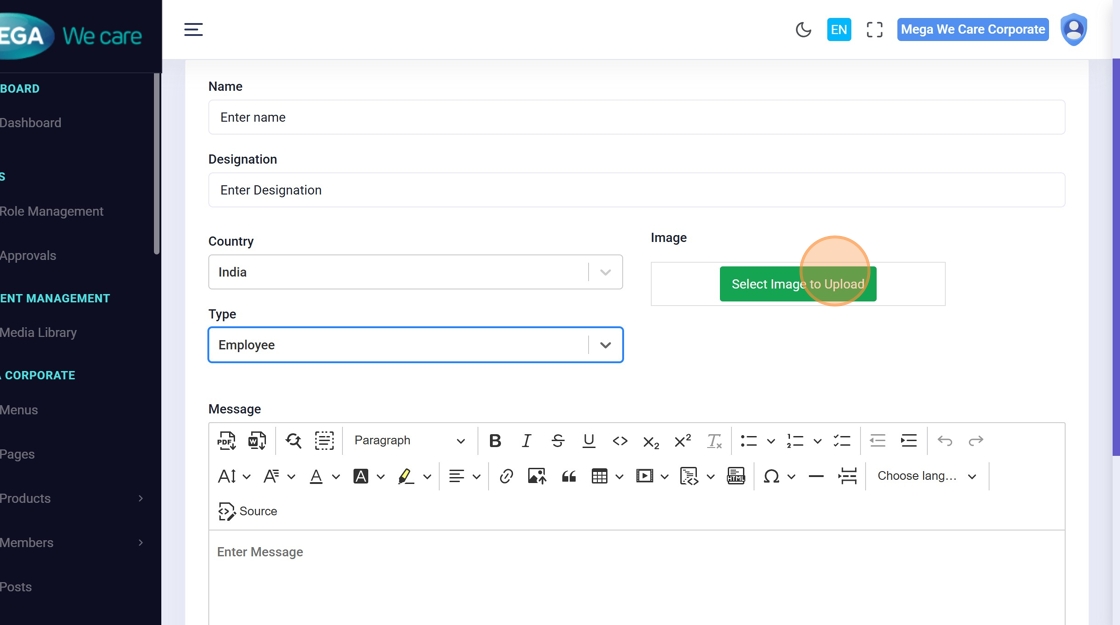
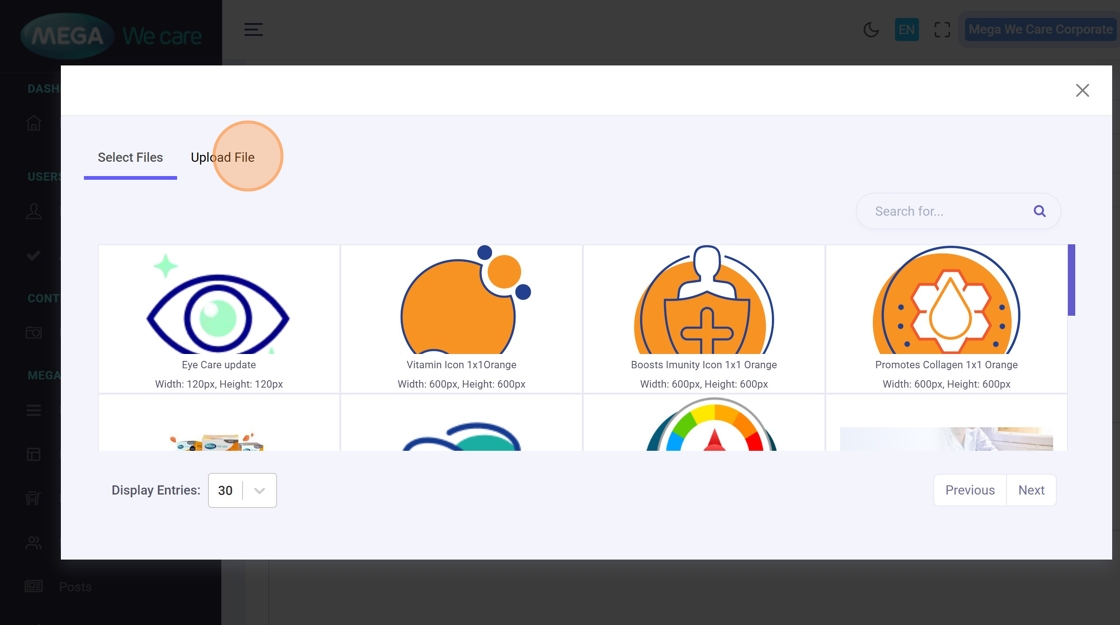
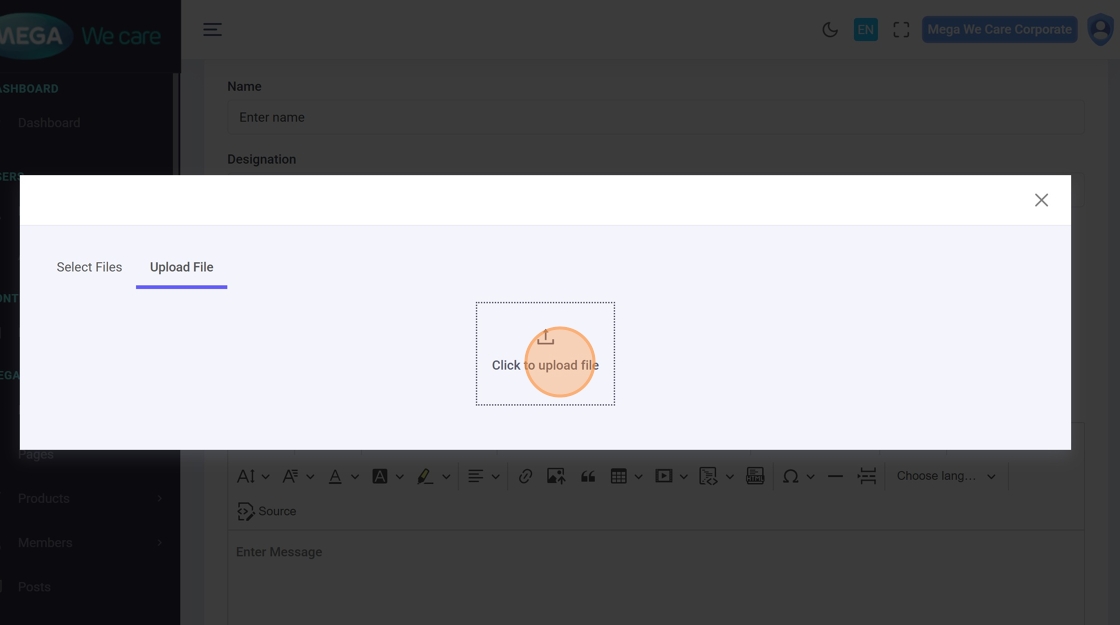
12–14. Upload Profile Image
Click Select Image to Upload, upload or select from the media library.
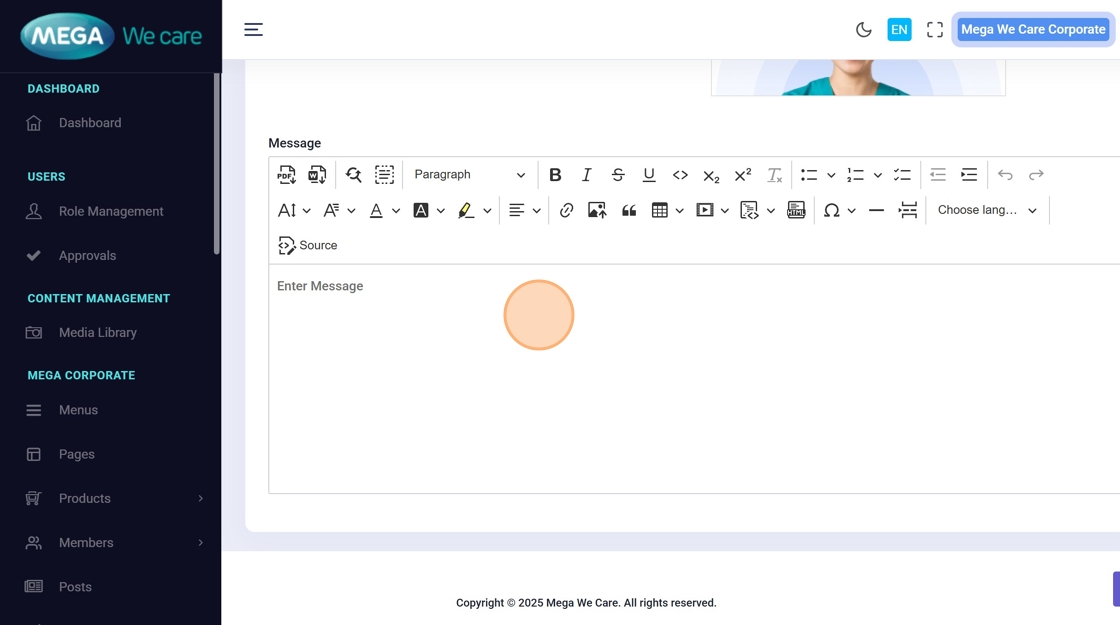
15. Enter Testimonial Message
Type the testimonial text in the Message editor.
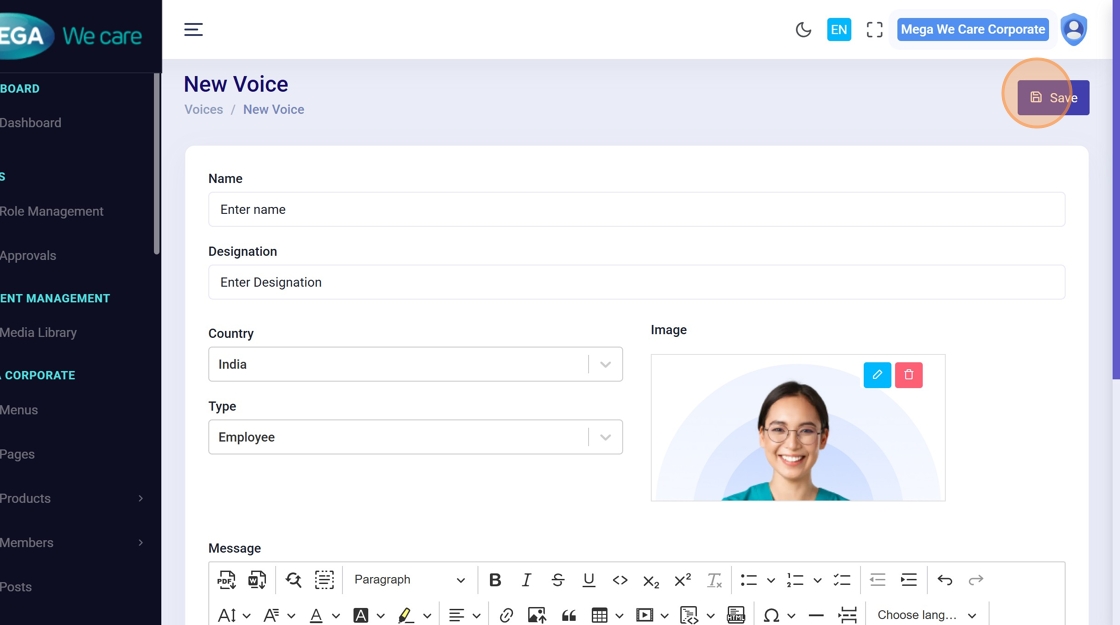
16. Save the Testimonial
Click Save to create the testimonial.
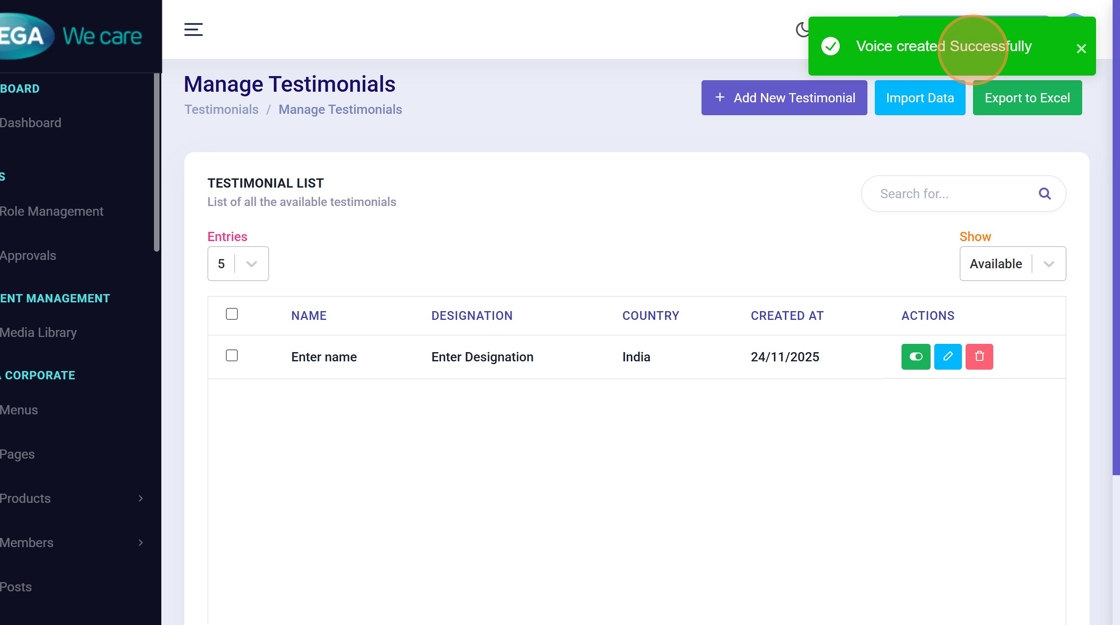
17. Confirmation
Look for the success message “Voice created Successfully” confirming the addition.
Update an Existing Testimonial
Use these steps to edit any testimonial field or replace the profile image.
18. Open Testimonials List
Navigate to the testimonials list (same as earlier).
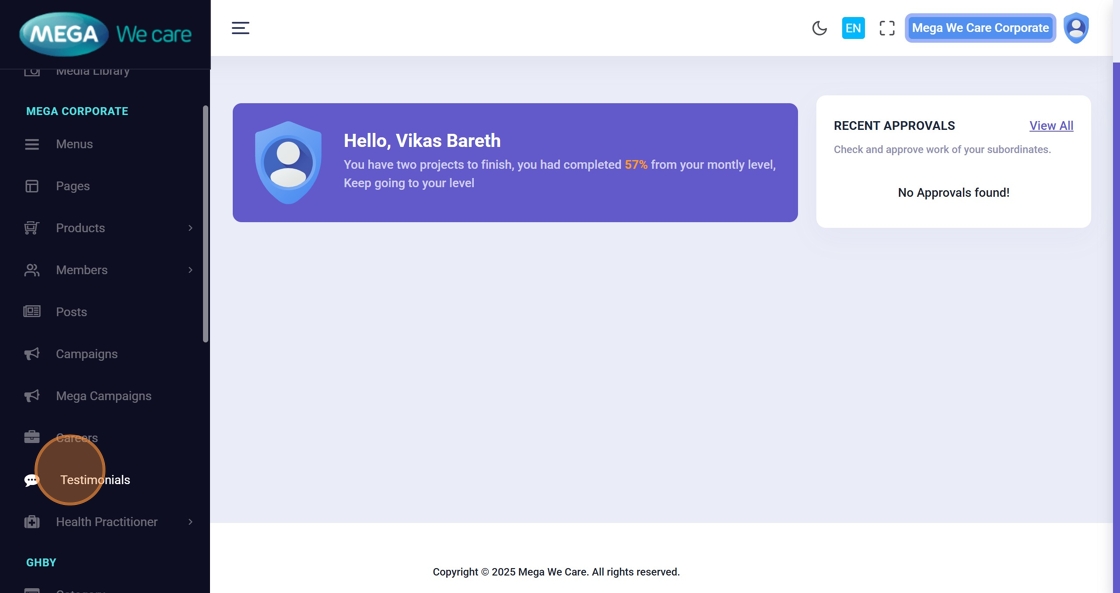
19. Click the Edit Icon
Click Edit next to the testimonial you want to change.
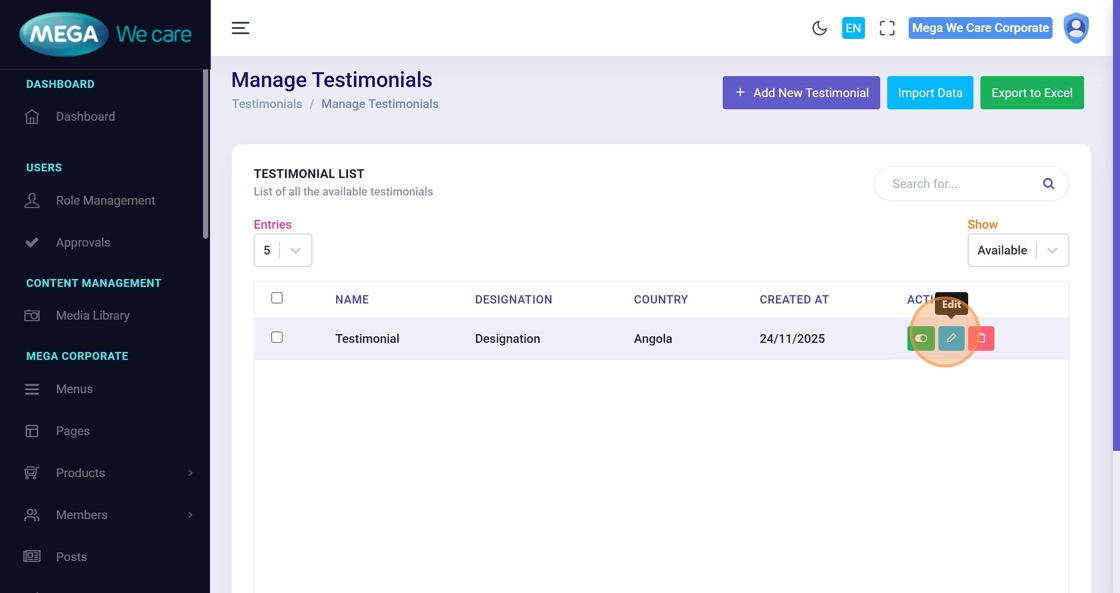
20–23. Update Fields
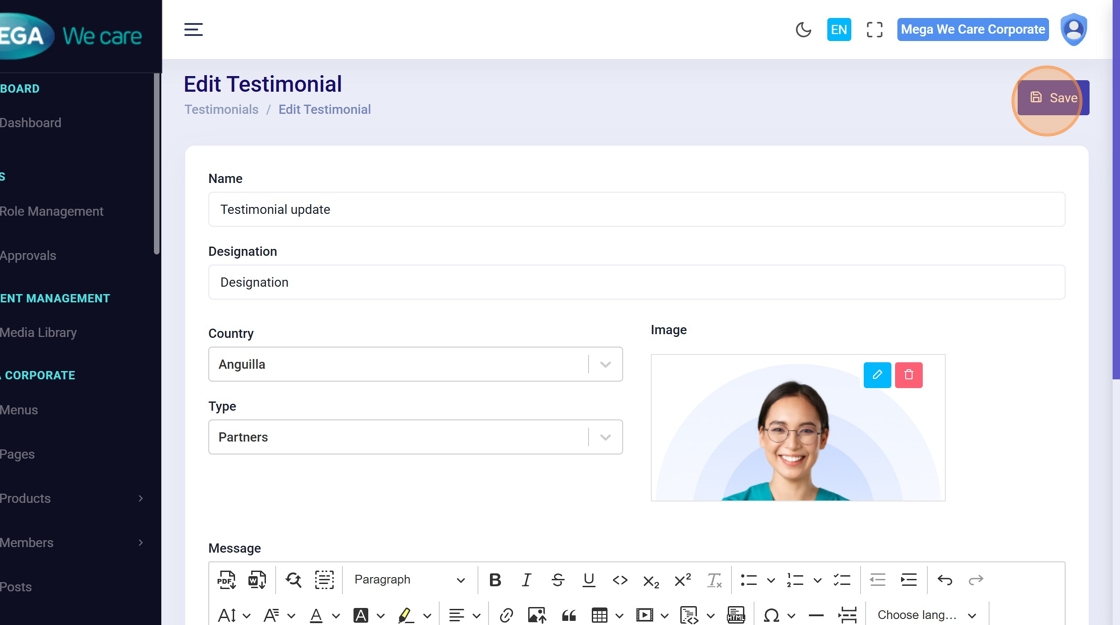
Modify fields like name, designation, country, type, or message directly in the form.
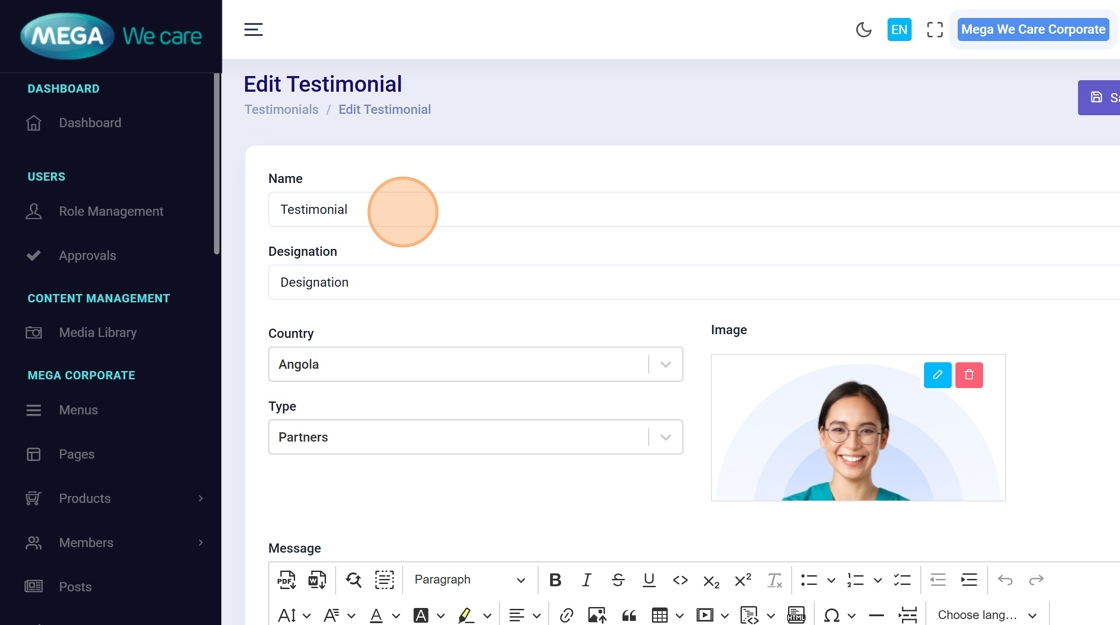
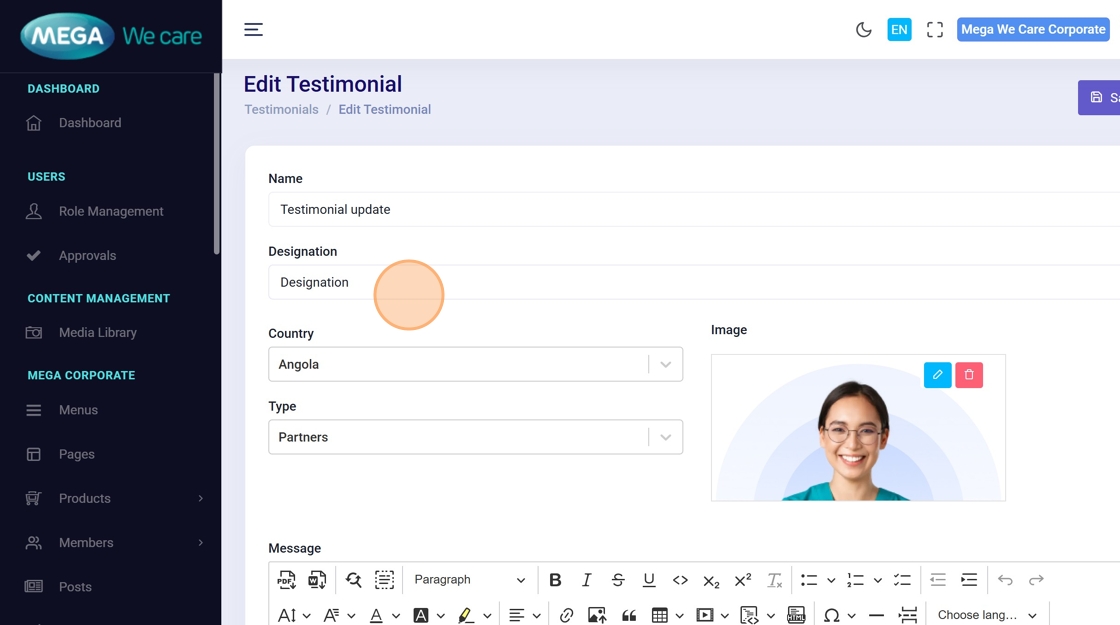
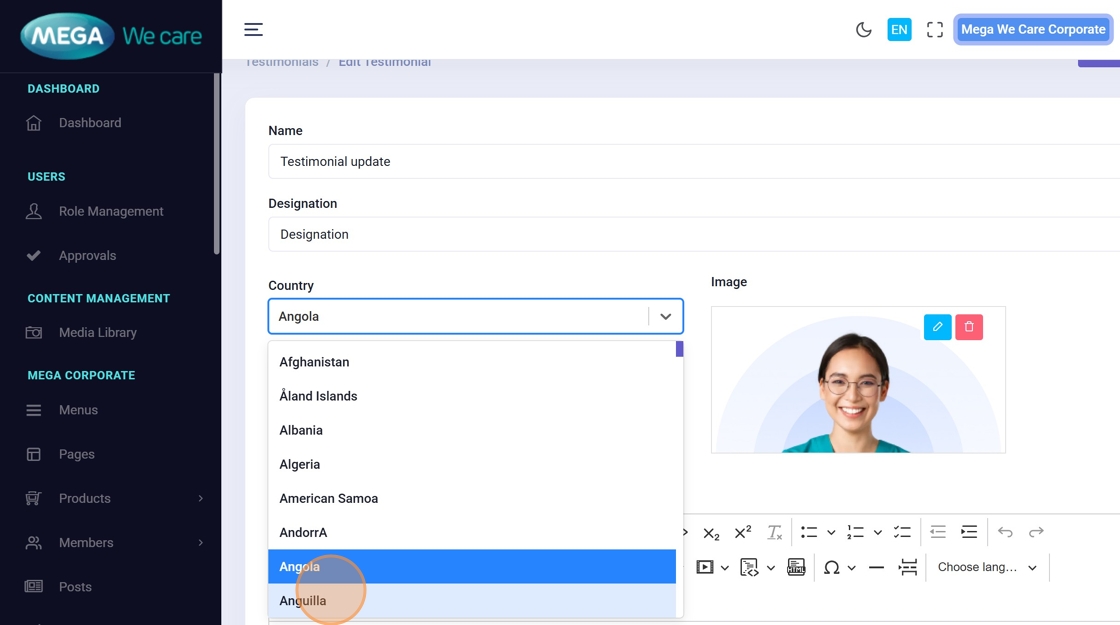
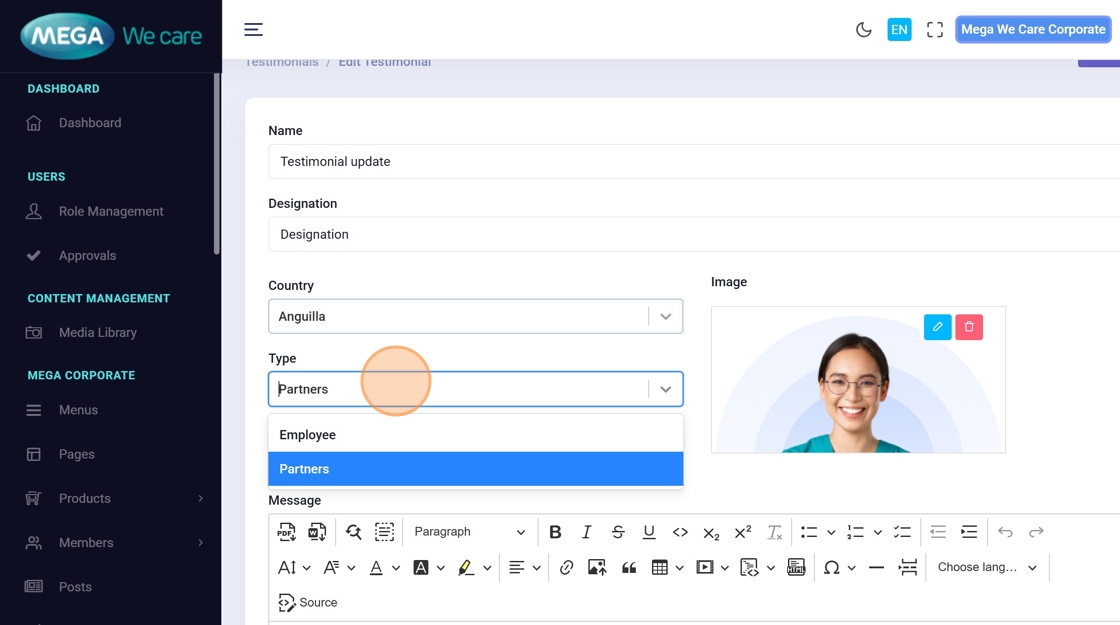
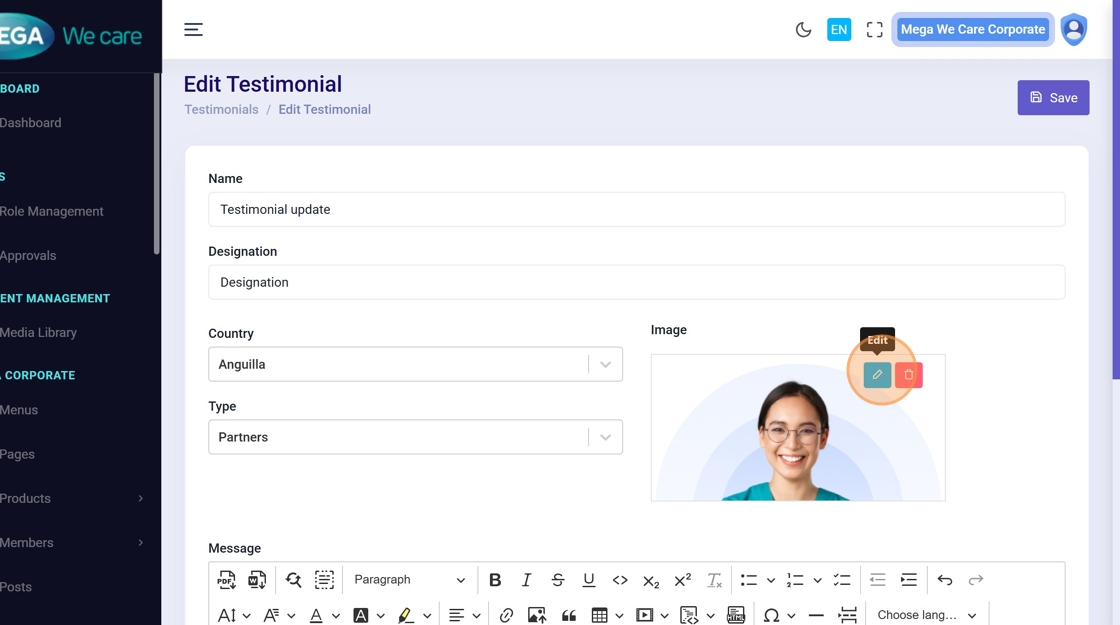
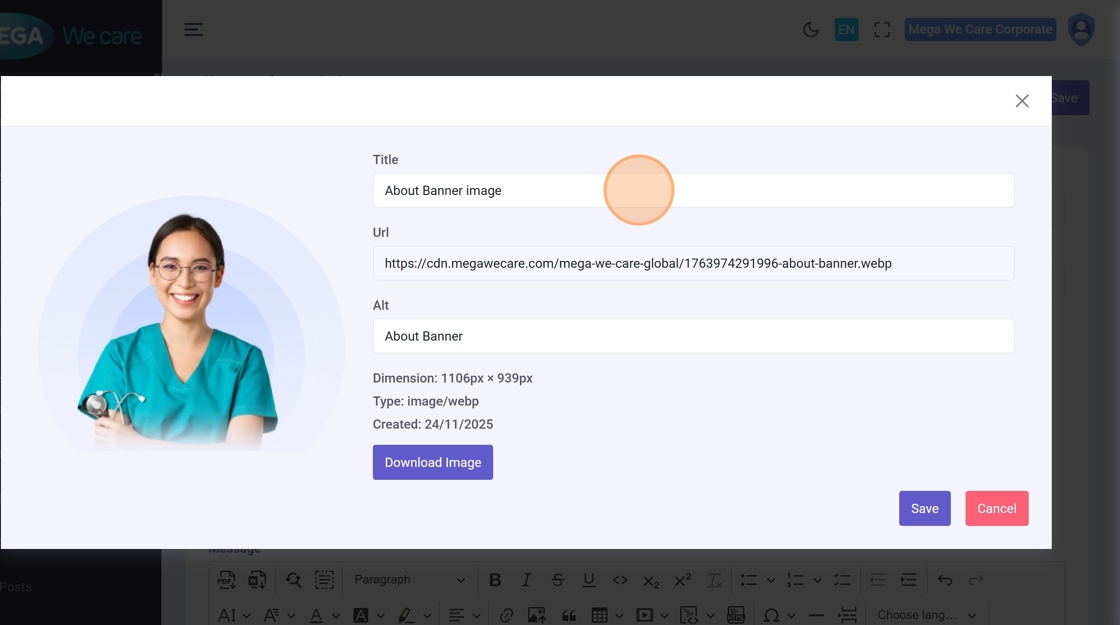
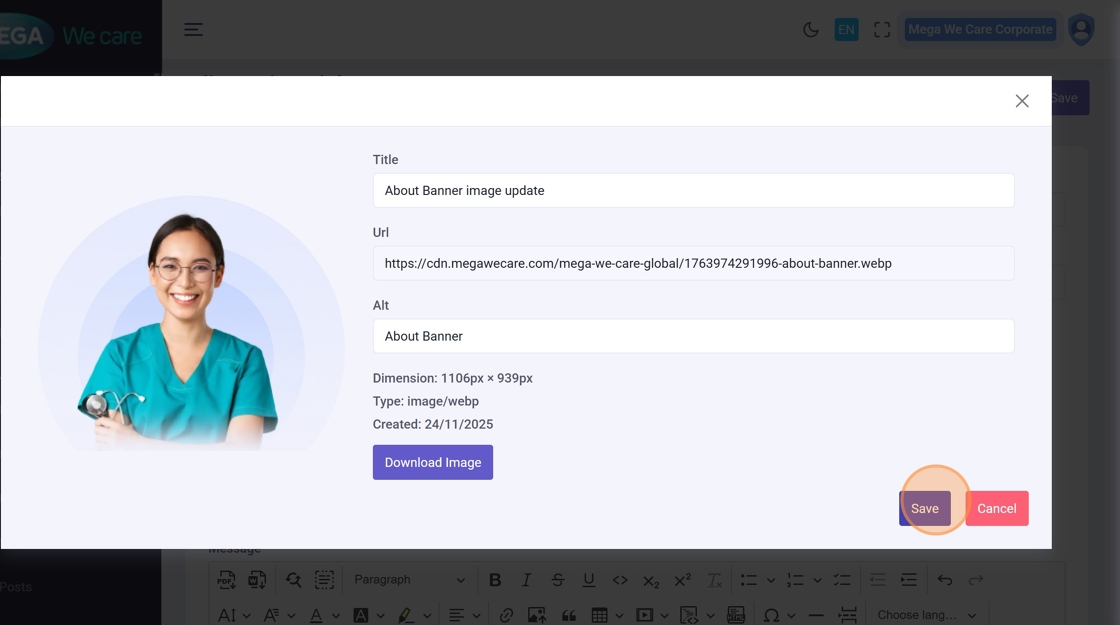
24–26. Update Profile Image Details
Click the image edit icon to open image settings, change title or URL, then Save.
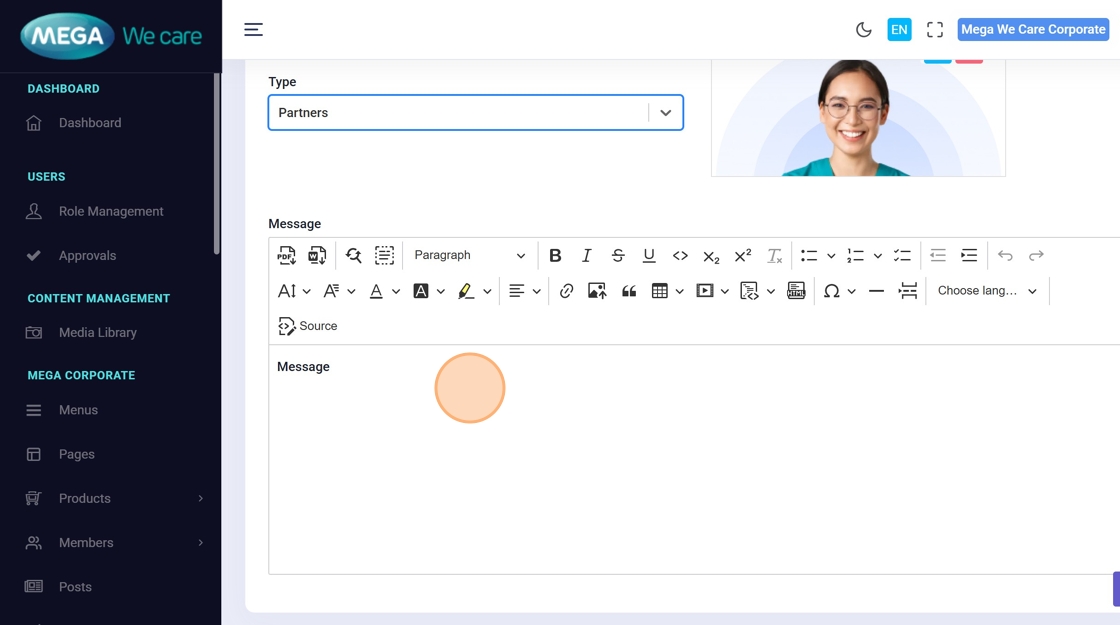
27. Save Testimonial Updates
Click the main Save button to apply all changes.
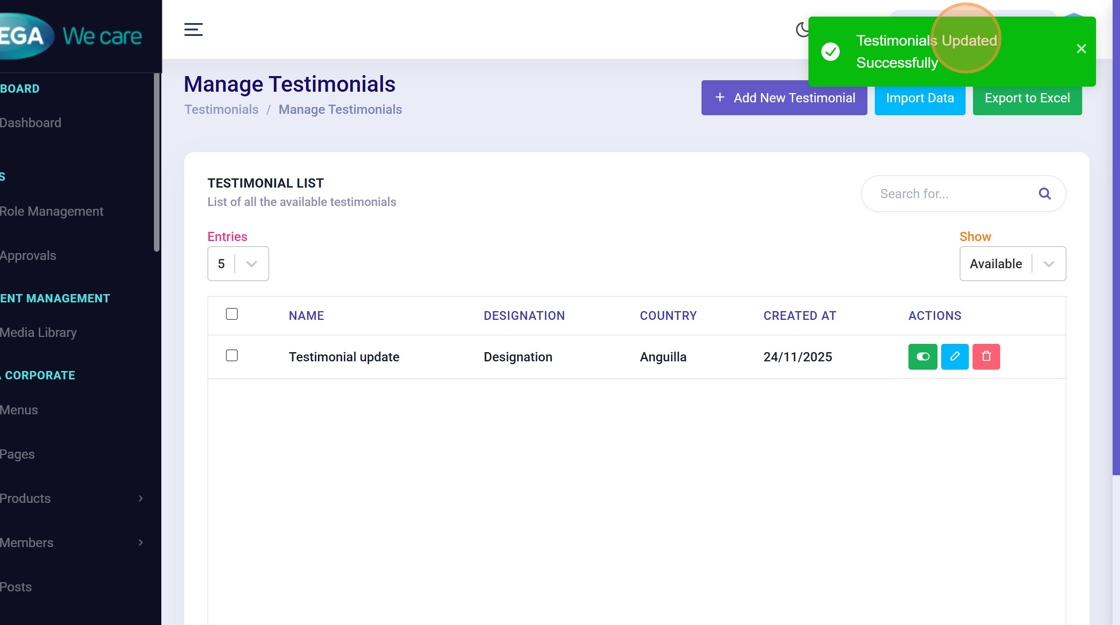
28. Update Confirmation
You should see “Testimonials Updated Successfully” after saving.
Delete a Testimonial (corrected flow & images)
29. Go to Testimonials list
Open the testimonials module to see the list of entries.
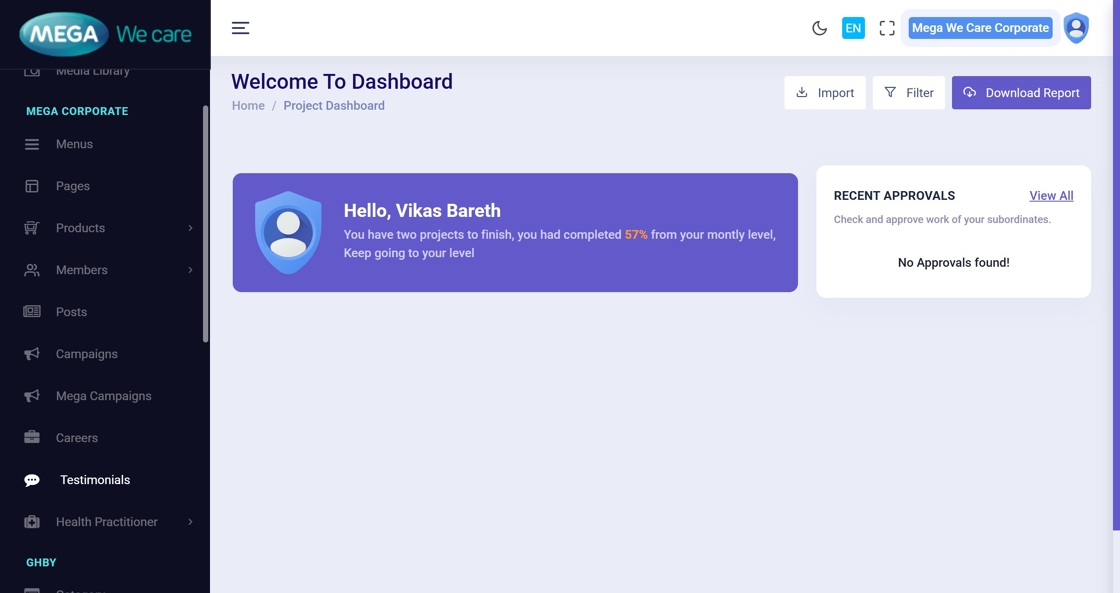
30. Open Testimonials
Click Testimonials in the sidebar if not already on the page.
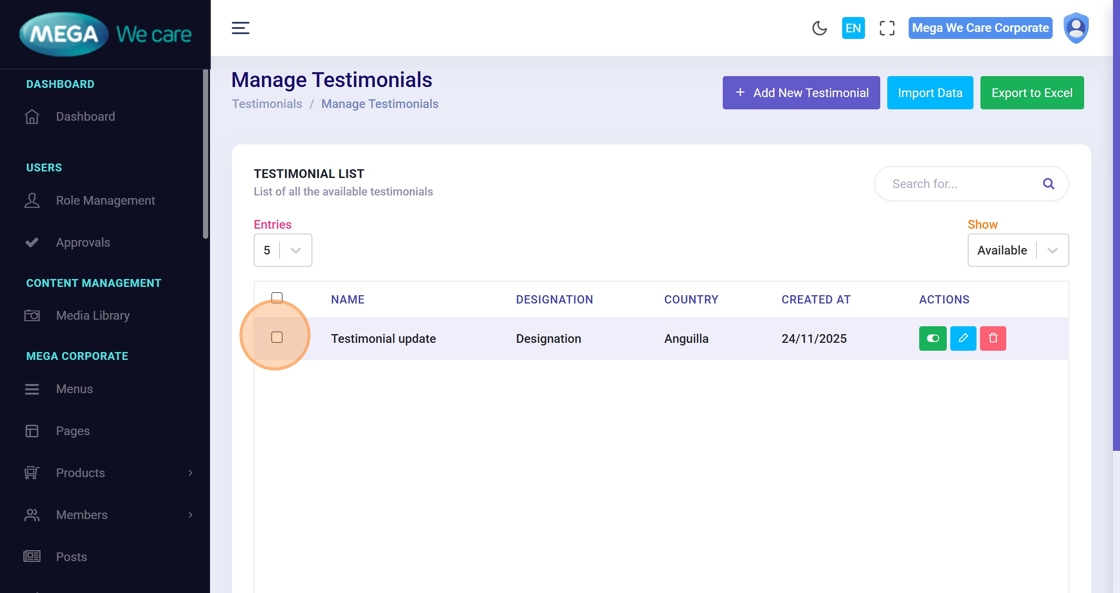
31. Select the Testimonial
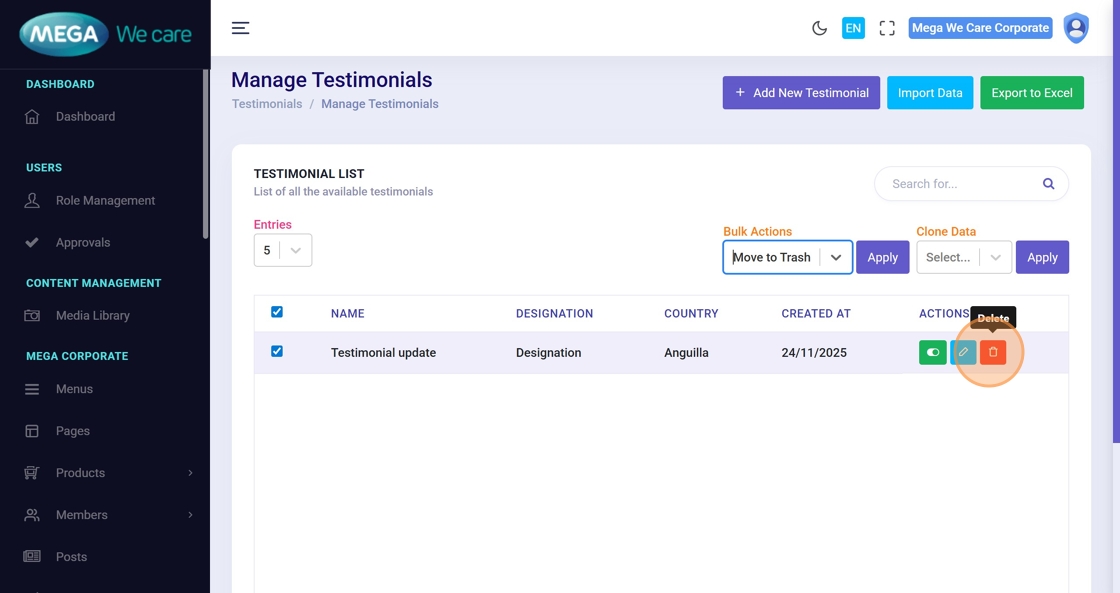
Check the box beside the testimonial you want to remove. (Use this for single or bulk deletion.)
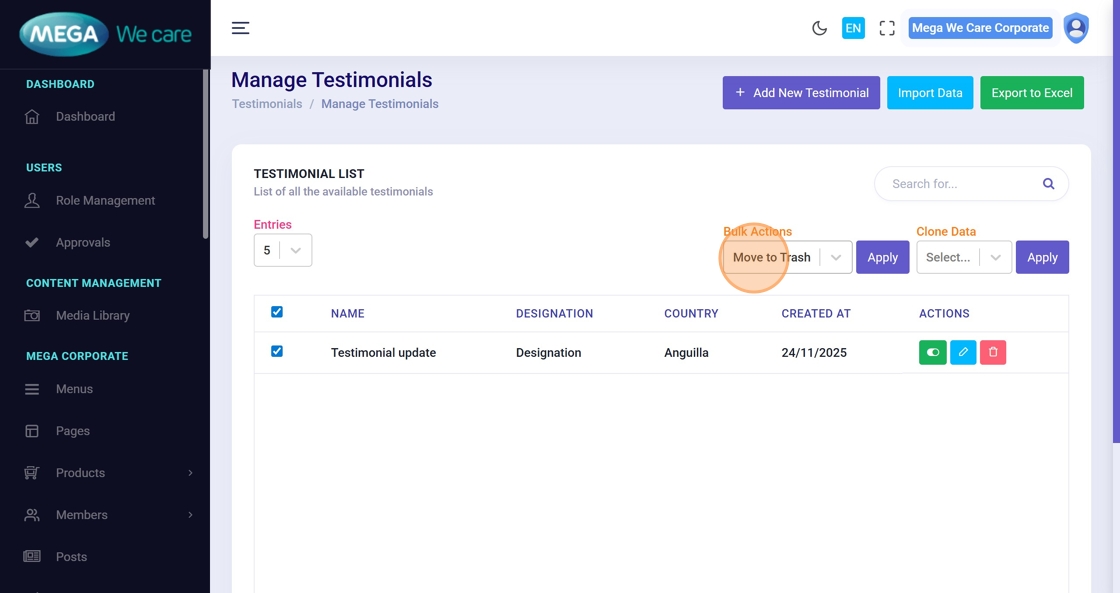
32. Open Bulk Actions (optional)
You can use the Bulk Actions dropdown for operations on multiple selected items.
33. Click the Delete Icon (Action Column)
Alternatively, click the Delete icon in the Actions column for a single item.
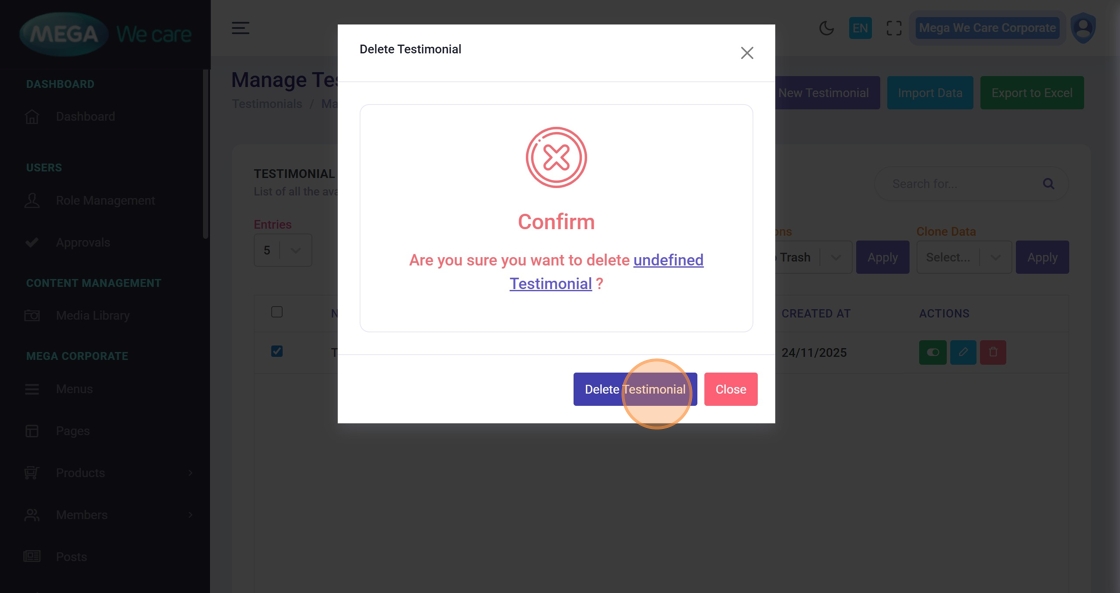
34. Confirm Deletion
A confirmation popup will appear. Click Delete Testimonial to permanently remove it.
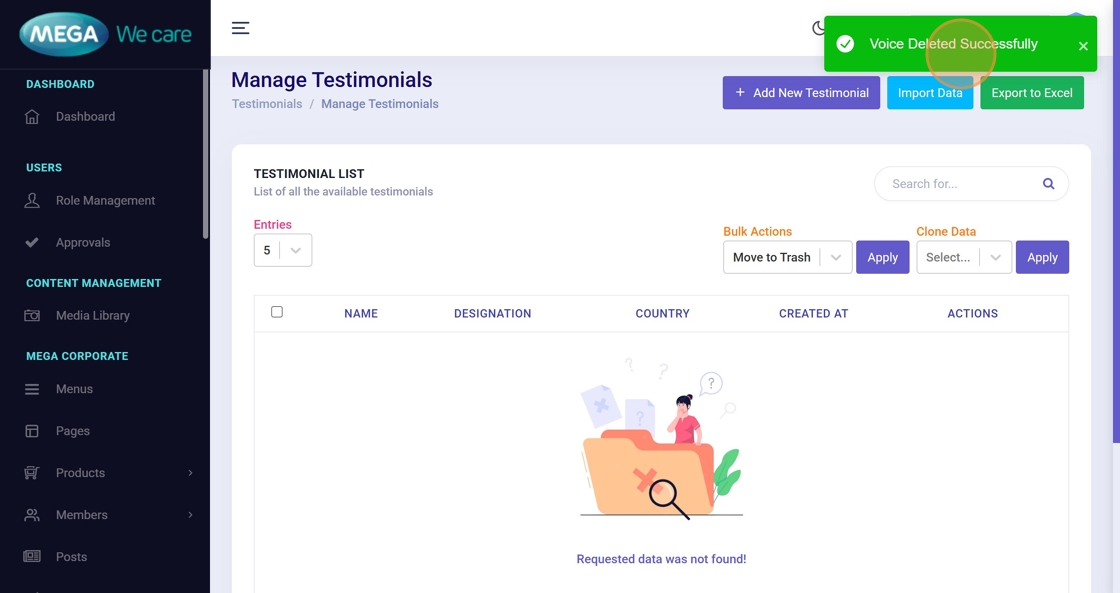
35. Deletion Confirmation Message
After deletion, look for “Voice Deleted Successfully” to confirm the record was removed.
Important Notes
- Select Type as Employee or Partner
- Upload images only in WEBP format; do not use PNG, JPG, or JPEG files
Summary
By following this guide, you can easily complete the full add, edit, update, and delete flows with clear steps, images, and confirmation screens, ensuring testimonial management is accurate, safe, and easy to follow.