Page Navigation
How to Add, Update and Delete GHBY Videos
This document explains how the GHBY Videos module allows administrators to manage video-based content displayed across the GHBY platform. Using this module, users can add new videos, organize them into the correct categories, embed video links, optimize SEO metadata, and update existing entries
Overview
By following this document, you will be able to:
- Add new GHBY videos with titles and video links
- Assign categories and subcategories
- Embed Youtube video URLs correctly
- Add SEO metadata (Meta Title, Keywords, Description)
- Add supporting content for videos
- Edit and update existing video entries
Add a New GHBY Video
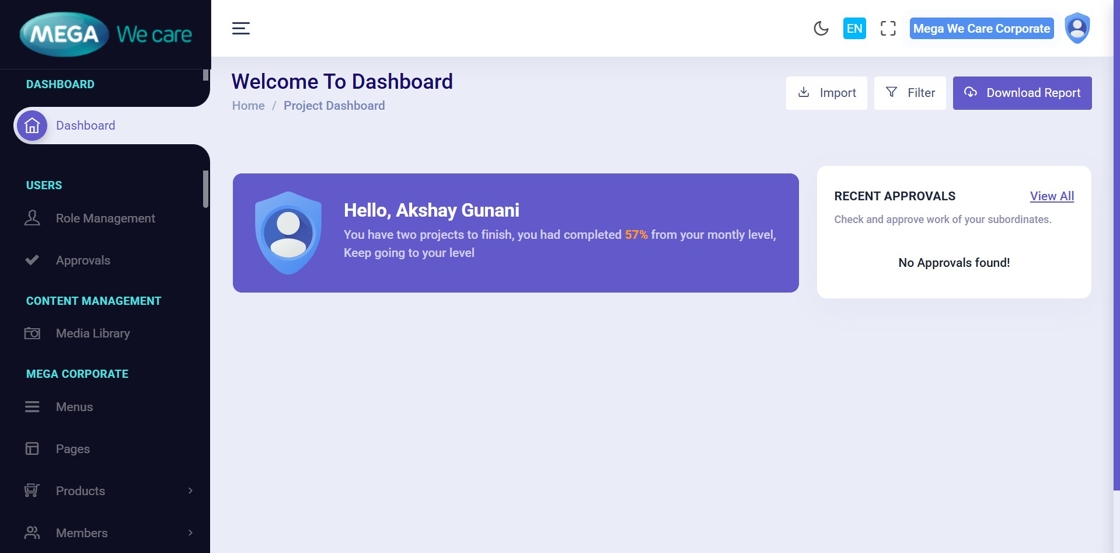
Step 1: Open Admin Dashboard
🏠 Log in to the Admin Dashboard to begin managing videos.
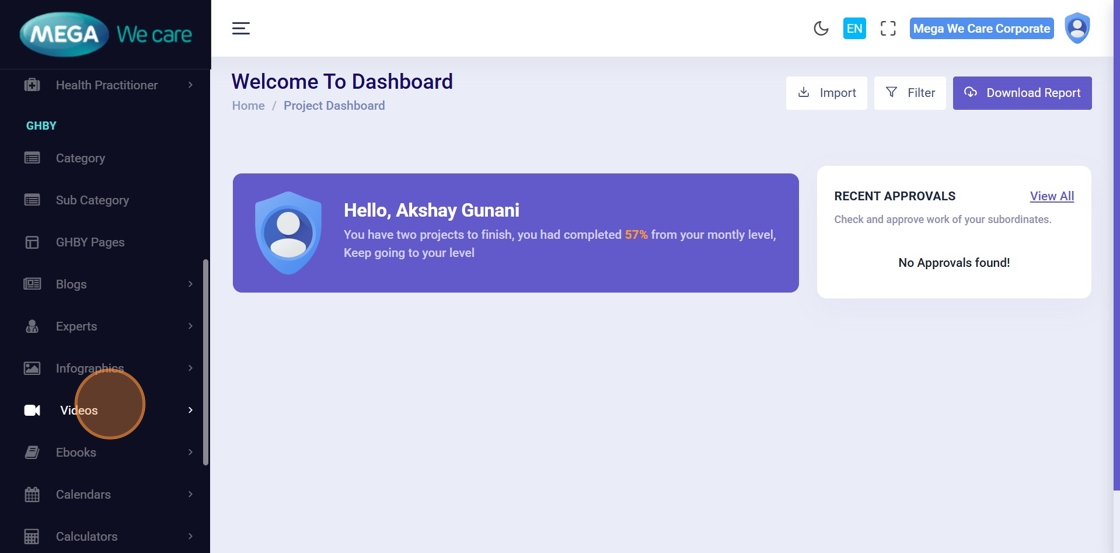
Step 2: Click “Videos”
📂 From the left sidebar, click Videos.
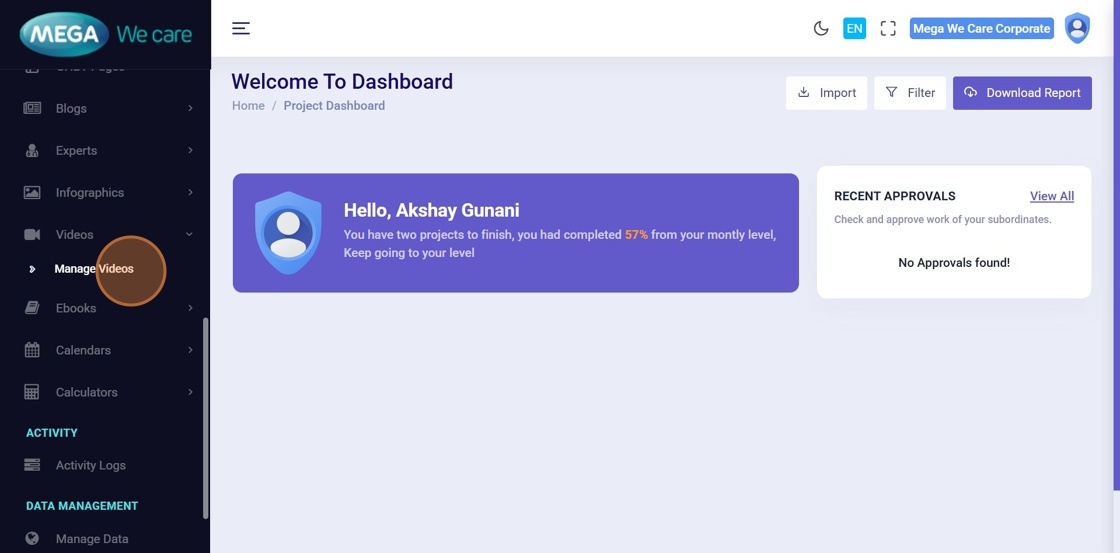
Step 3: Click “Manage Videos”
📋 This opens the list of all existing GHBY videos.
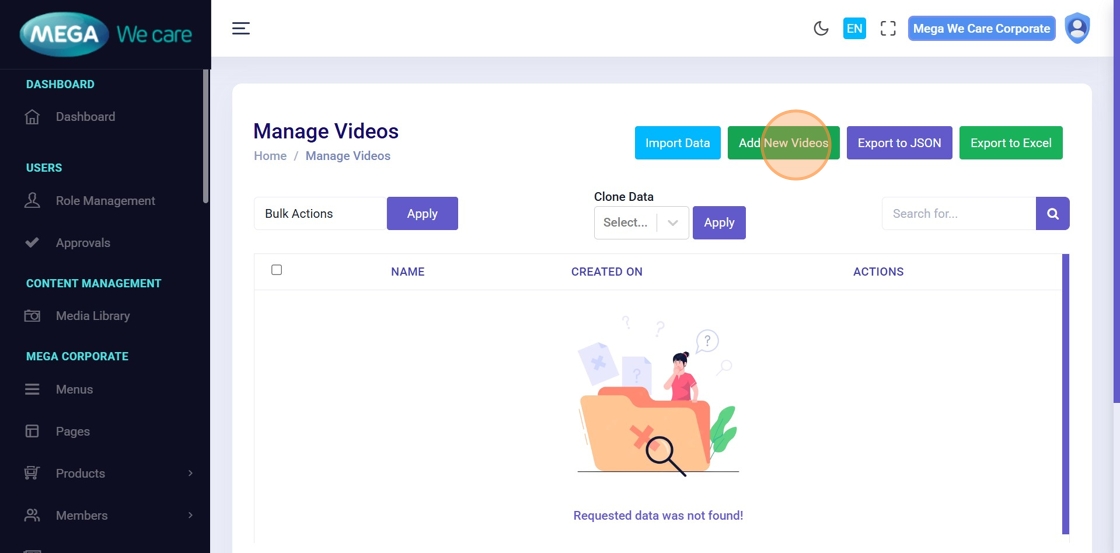
Step 4: Click “Add New Videos”
➕ Click Add New Videos to open the video creation form.
Step 5: Enter Video Title
📝 Enter a clear and meaningful Video Title.
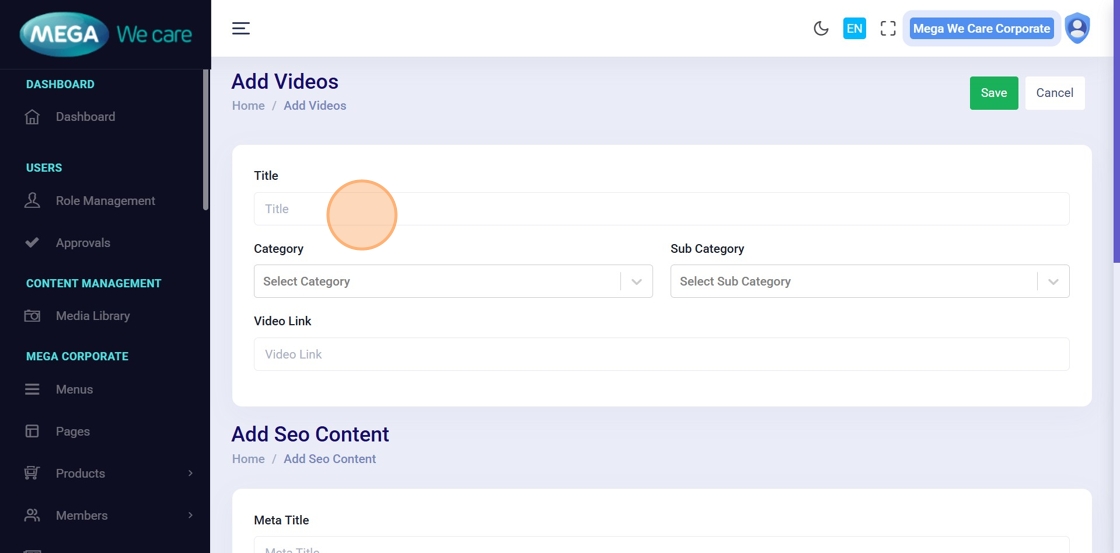
Step 6: Select Category & Subcategory
🗂️ Choose the appropriate:
- Category
- Sub Category
This ensures the video appears in the correct section on the frontend.
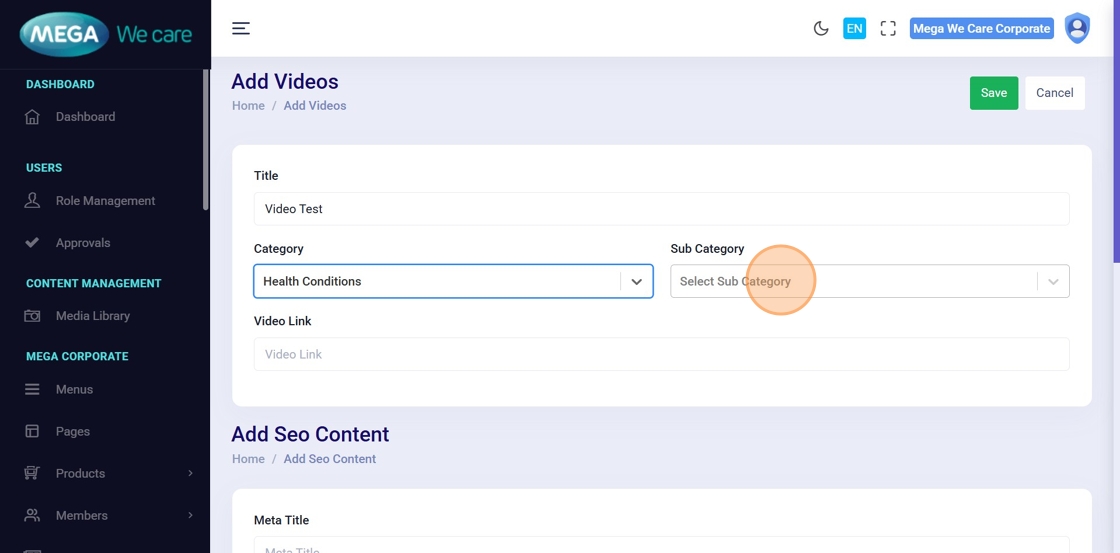
Step 7: Add Video Link
🔗 Paste the video URL into the Video Link field
(use Ctrl + V to paste).
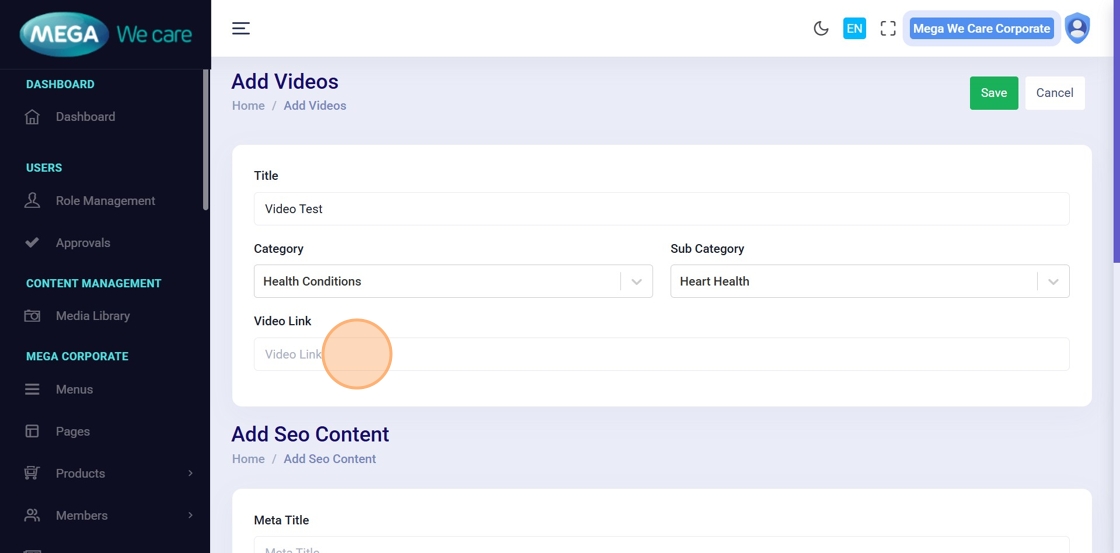
Step 8: Add Meta Title
🔍 Enter the Meta Title for SEO purposes.
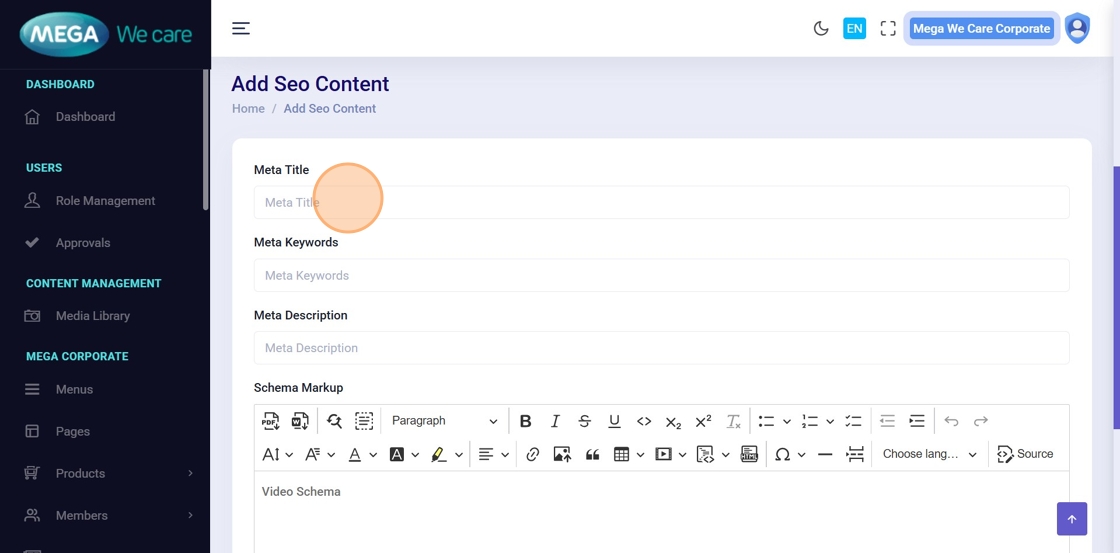
Step 9: Add Meta Keywords
🏷️ Enter relevant Meta Keywords related to the video content.
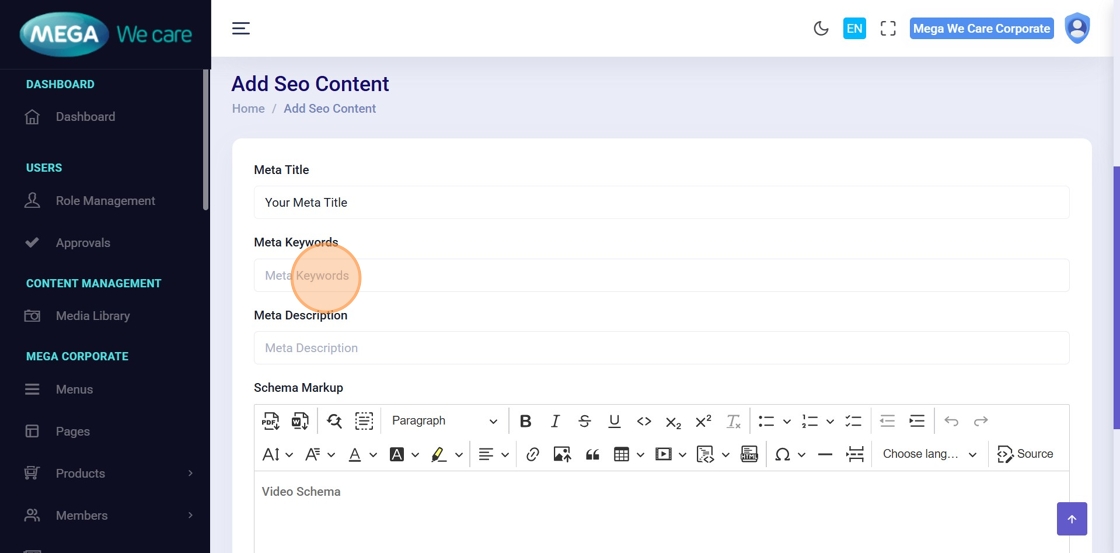
Step 10: Add Meta Description
🧾 Write a concise Meta Description for search engine visibility.
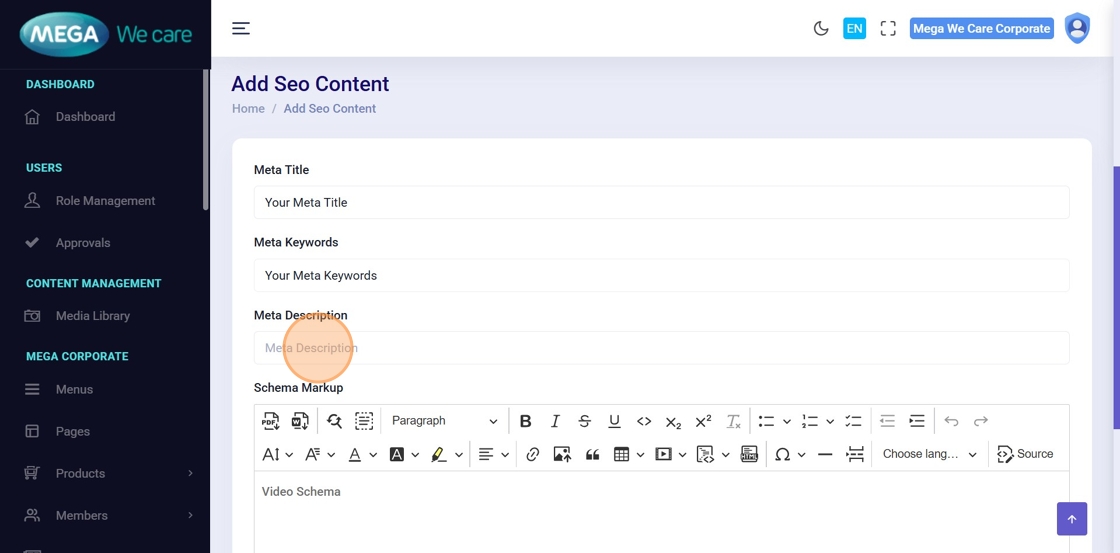
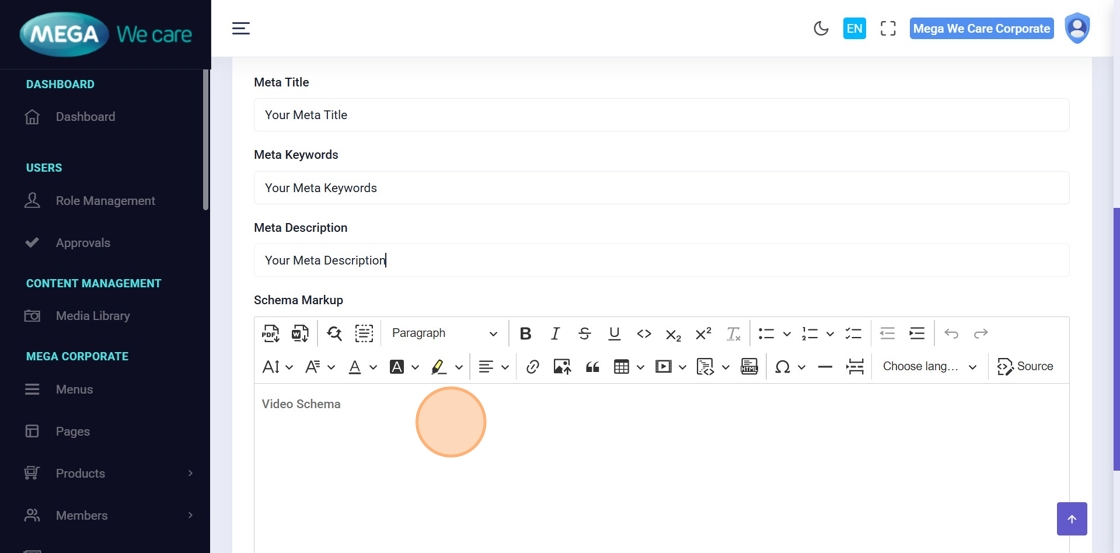
Step 11: Add Supporting Content
📝 Use the content editor to add:
- Video description
- Context or explanation
- Supporting text for users
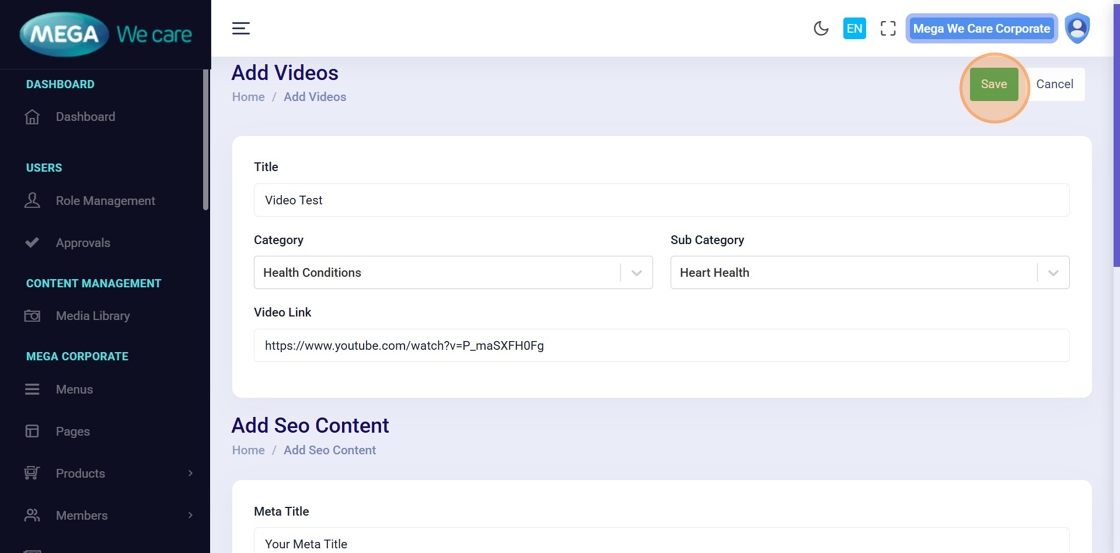
Step 12: Save the Video
💾 Click Save to create the new video entry.
Step 13: Verify Video Creation
✅ Confirm that the newly added video appears in the Manage Videos list.
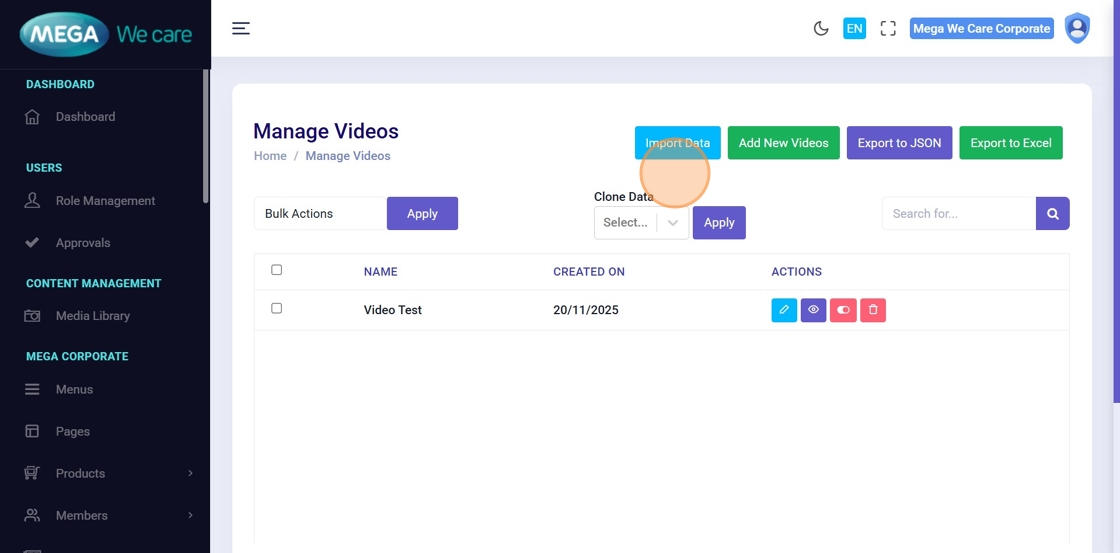
Edit & Update GHBY Videos
Step 14: Search for the Video
🔍 Use the Search for… field to quickly find the video you want to edit.
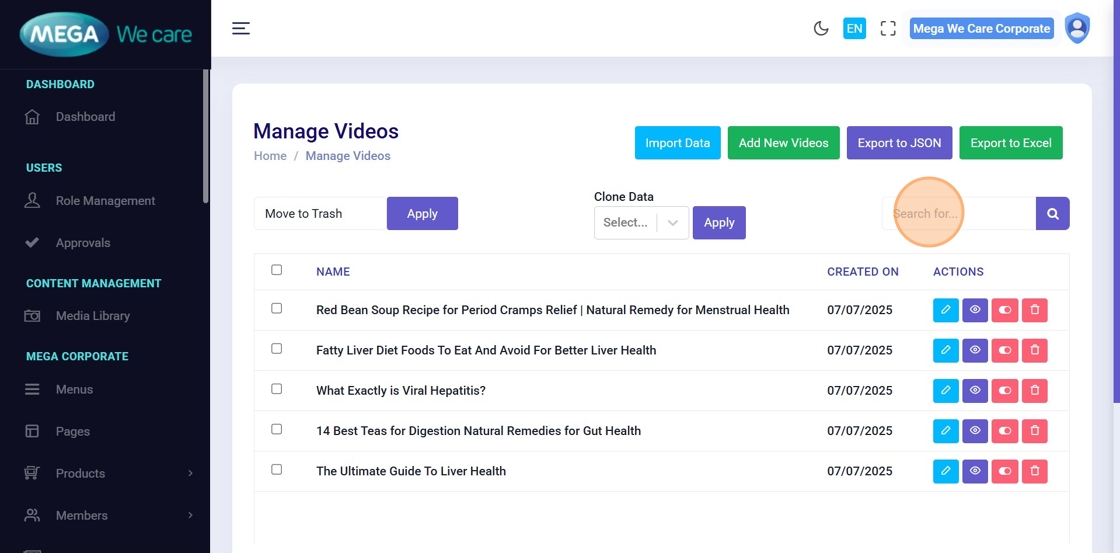
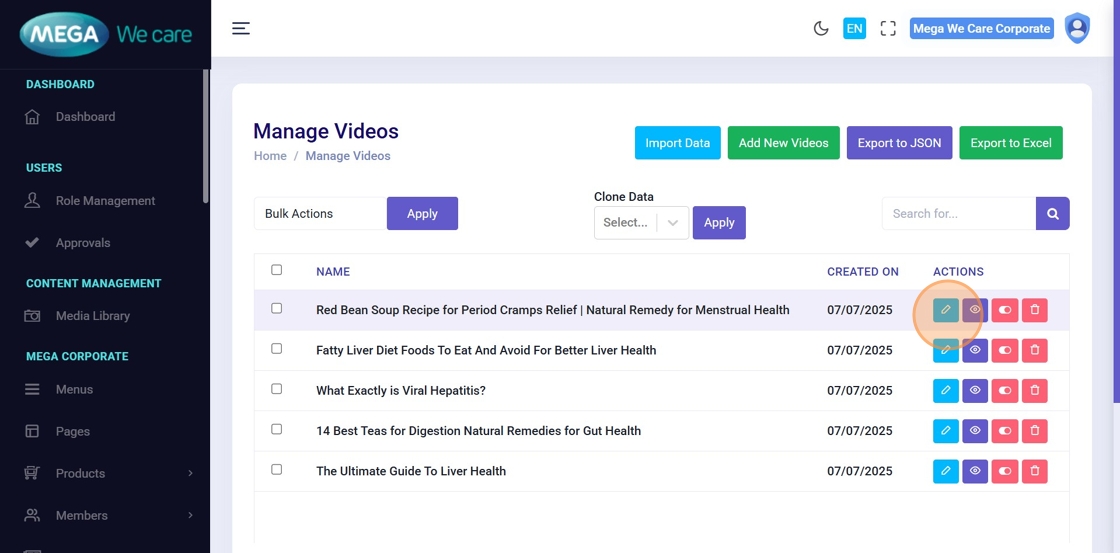
Step 15: Click Edit
✏️ Click the Edit icon next to the selected video.
Step 16: Update Video Title
📝 Modify the Title if the video name needs to be updated.
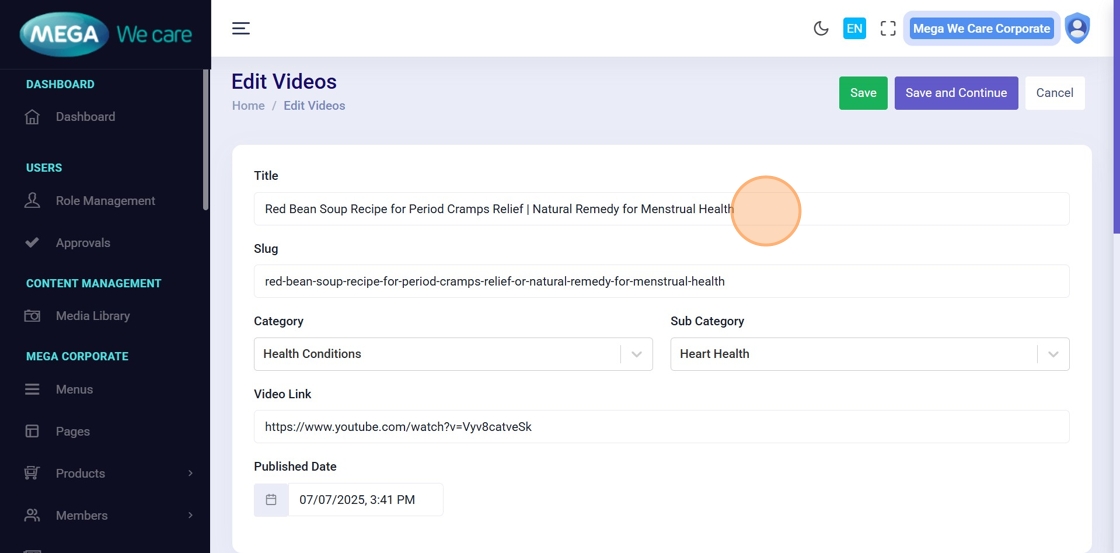
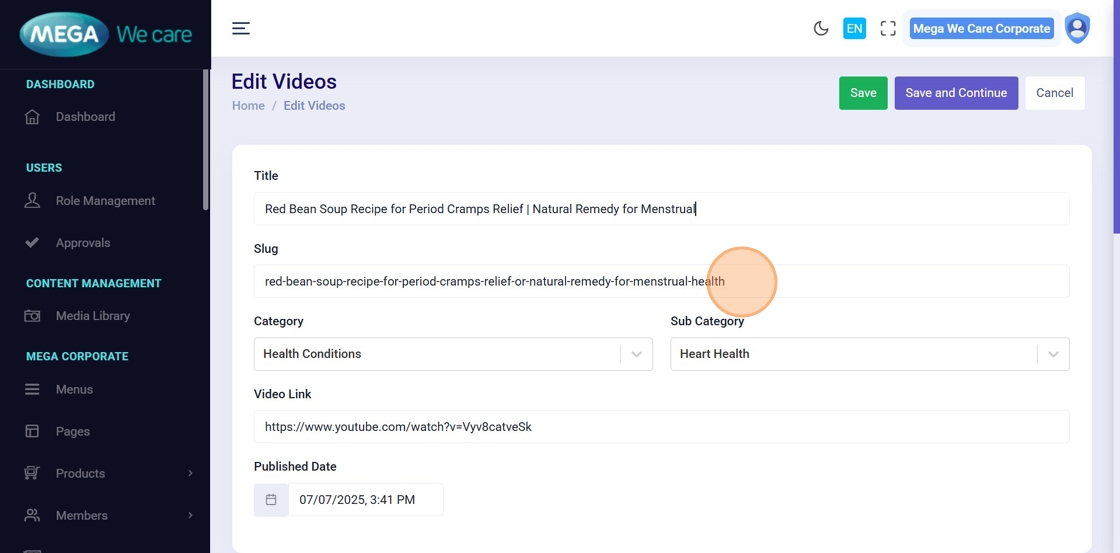
Step 17: Update Slug & Other Details
🛠️ Update any required fields, such as:
- Slug
- Category / Subcategory
- Video Link
- Supporting Content
- SEO details
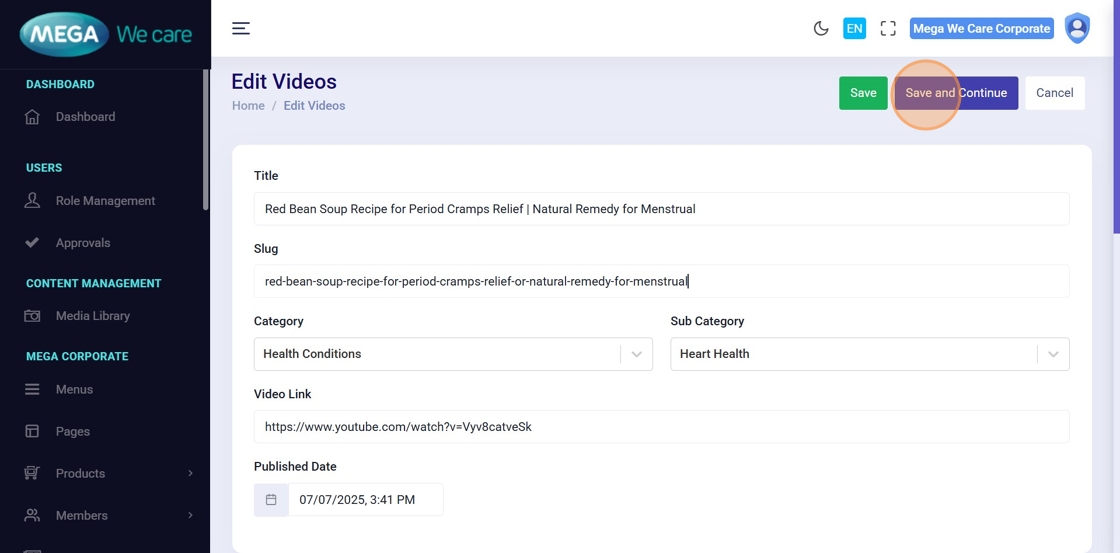
Step 18: Save Changes
✅ Click Save and Continue to apply and store all updates.
Important Notes
- To add a video in the GHBY Videos module, paste the YouTube watch link directly into the video link field.
Summary
By following this document, users can add new GHBY videos with titles, categories, and links, optimize videos with SEO metadata, add supporting content for better engagement, easily edit and update videos, and maintain accurate, organized, and search-friendly video content.