Page Navigation
How to Add and Manage Multiple Languages Content for all Pages/Sections
The Multiple Languages Database Management feature allows users to create and manage separate language databases for different countries and regions. This makes it possible to show the same website content in multiple languages while keeping each language’s data stored separately in MongoDB.
This document demonstrates the workflow using Menus as an example.The same steps apply to all pages and sections, including Pages, Blogs, Categories, Products, Calculators, Infographics, Videos, and more.
Overview
By following this document, you will be able to:
- Add new languages for a website
- Automatically create language-specific MongoDB databases
- Clone existing content into a new language database
- Edit translated content independently per language
- Maintain clean data separation across regions and languages
This approach ensures scalable multilingual support, accurate translations, and safe content management for global websites.
Add Languages & Create Multilingual Databases
Step 1: Log in as Super Admin
Log in using a Super Admin account.
Only Super Admins can add or manage languages and country configurations.
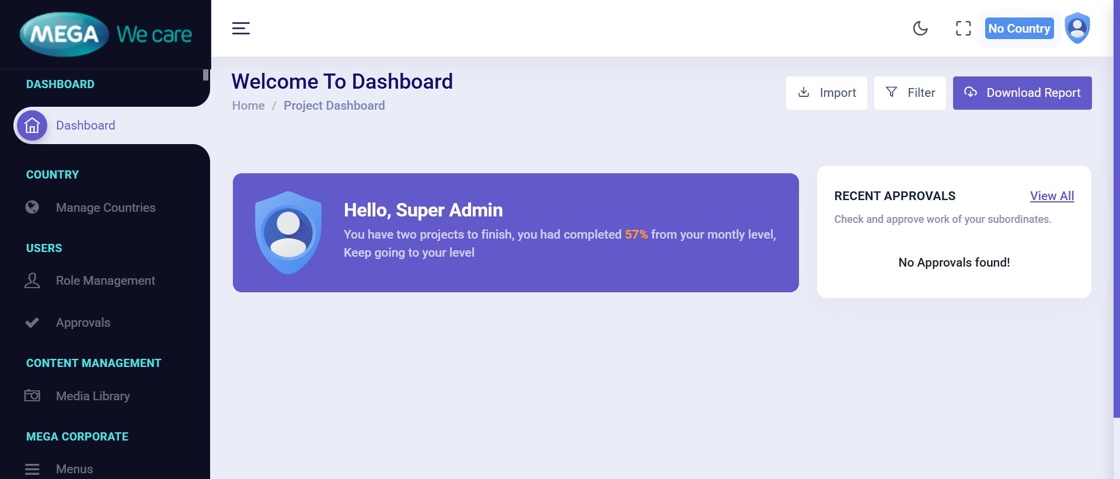
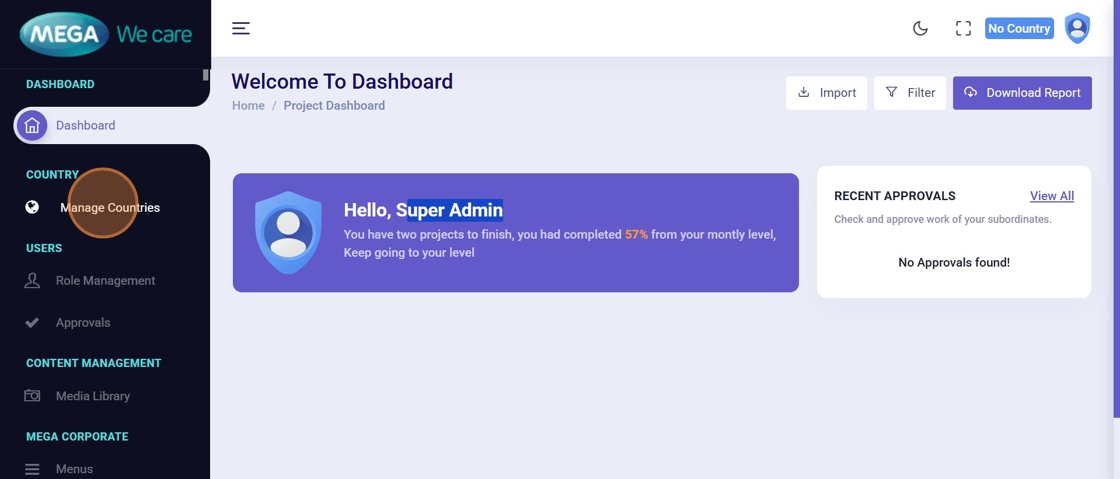
Step 2: Open Manage Countries
Navigate to Manage Countries from the dashboard.
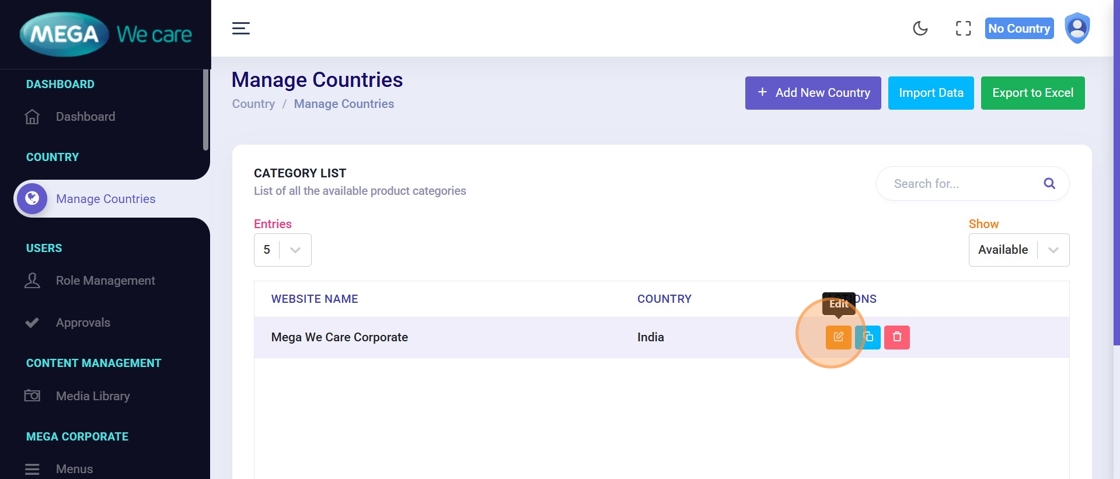
Step 3: Edit Website Configuration
Click Edit for the website where you want to enable multilingual support.
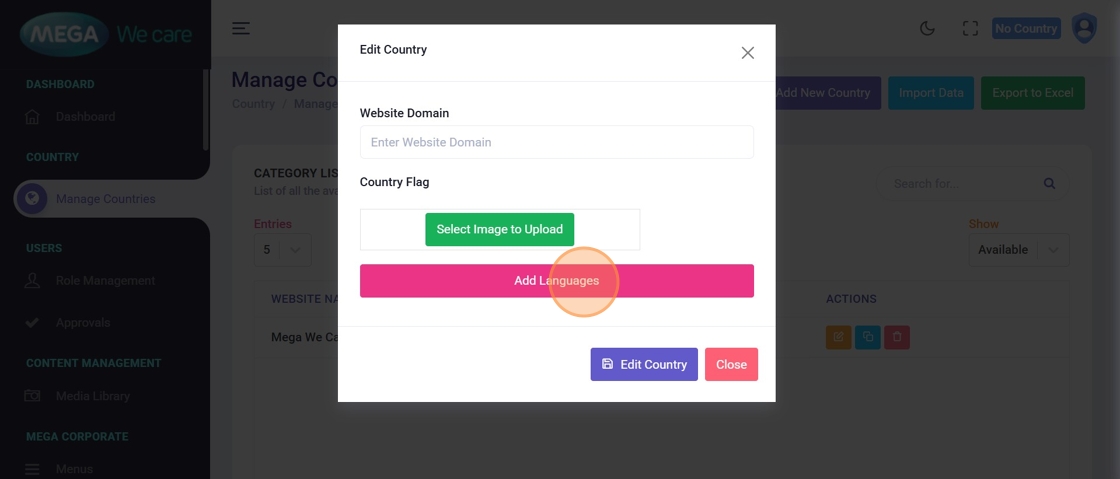
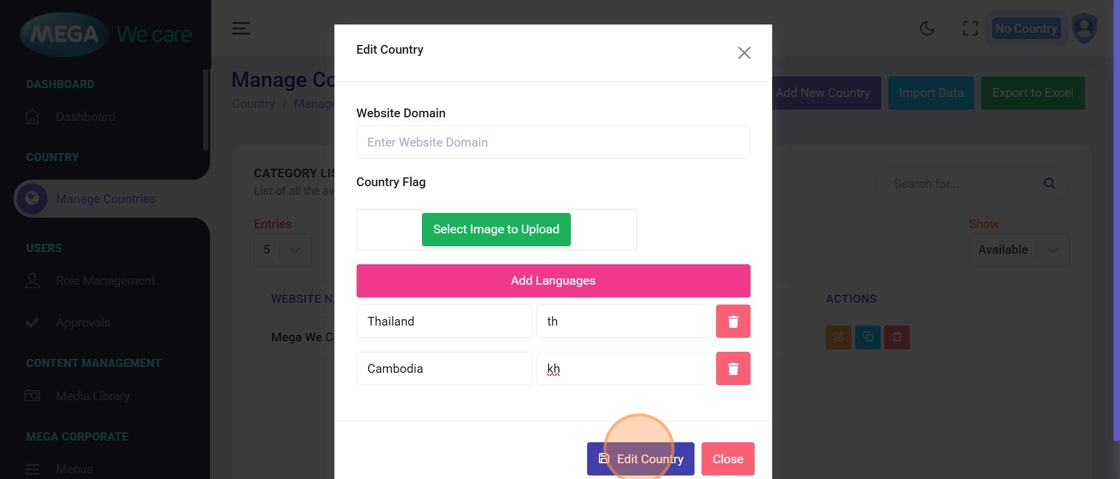
Step 4: Add Languages
Click Add Languages to add one or more languages for the website.
Step 5: Enter Country & Language Details
Enter the following details:
- Country Name
- Country Code
⚠️ Important: Always use lowercase for the country code(example:
kh,th,vn)
Click Edit Country to save the language configuration.
Step 6: Switch to Admin / User Login
Log out from the Super Admin account and log in using a normal Admin or User account.

Step 7: Verify Language Databases
After login, newly added languages appear in the Language Selector dropdown.
✅ Selecting a language for the first time automatically creates its MongoDB database.
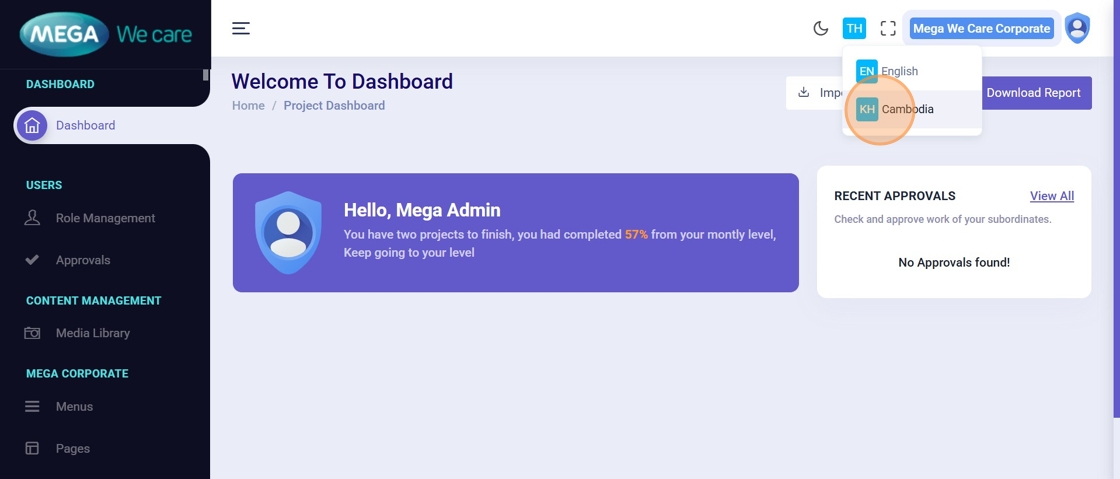
Step 8: Activate a Language Database
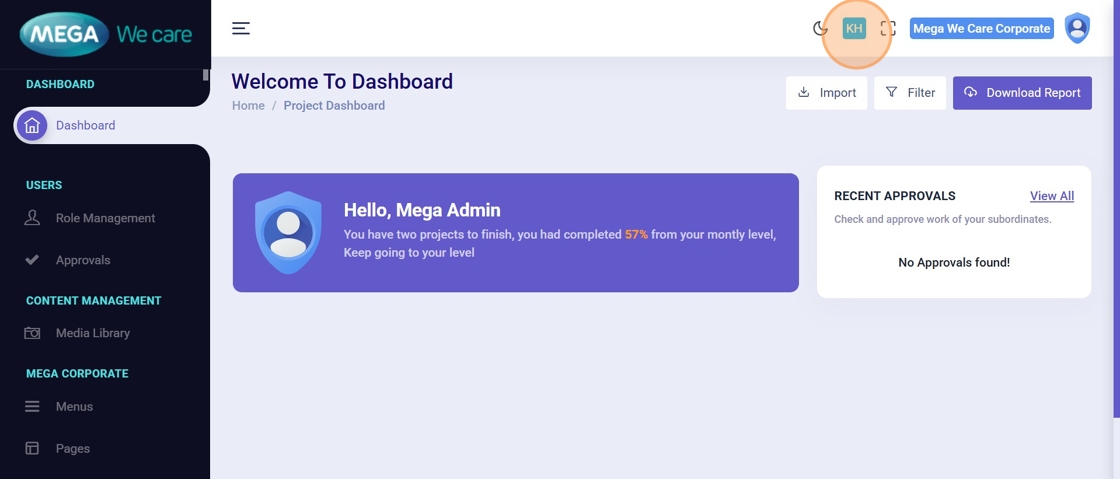
Select a language (example: Cambodia – KH) to activate its database.
All actions performed now apply only to this language database.
Clone Content into a Language Database
(Example: Menus)
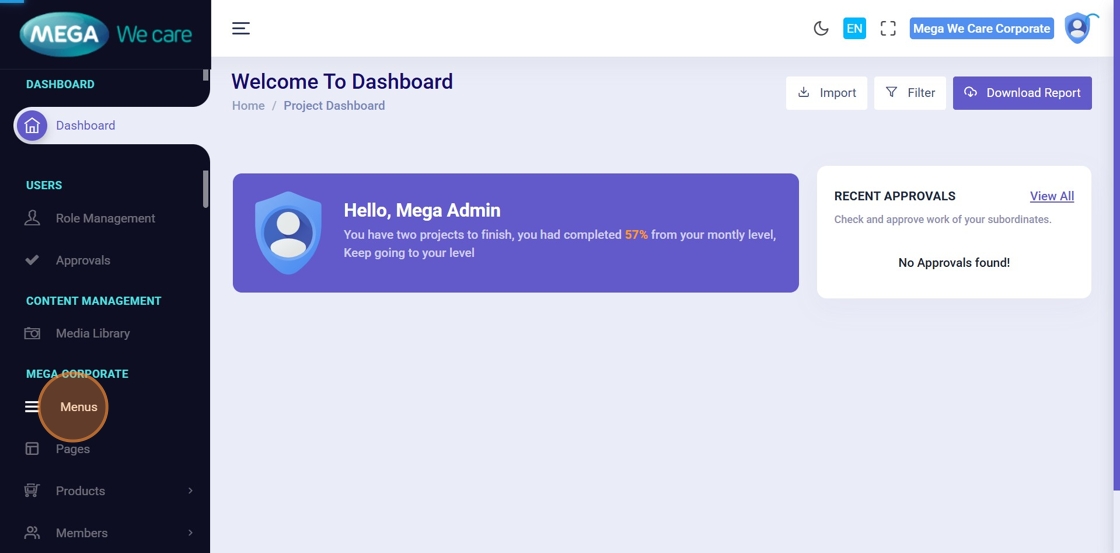
Step 9: Open Menus
Navigate to Menus to begin cloning content.
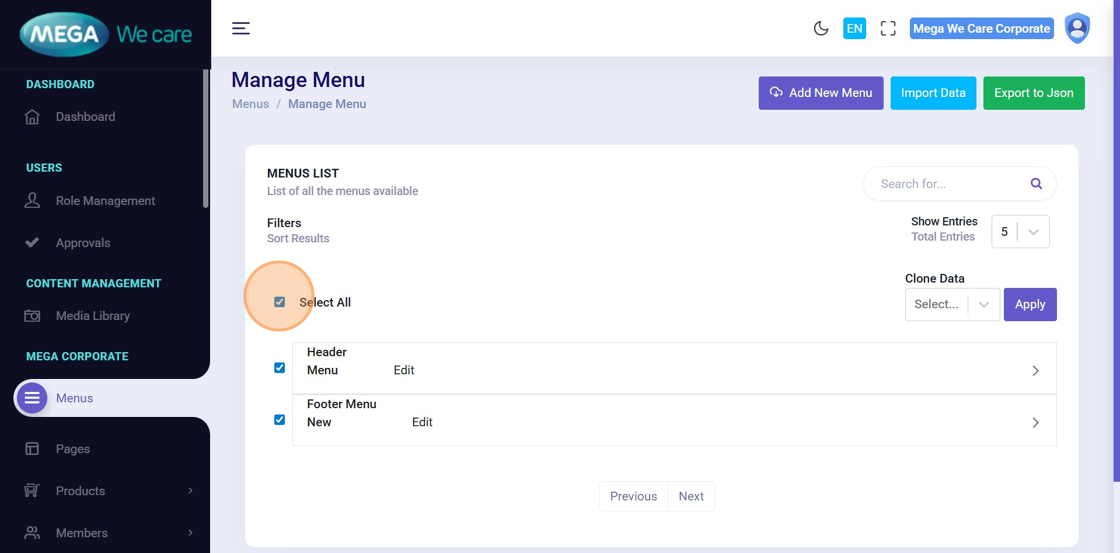
Step 10: Select Content to Clone
☑️ You can:
- Click Select All to clone all menus
- Or manually select specific menu items
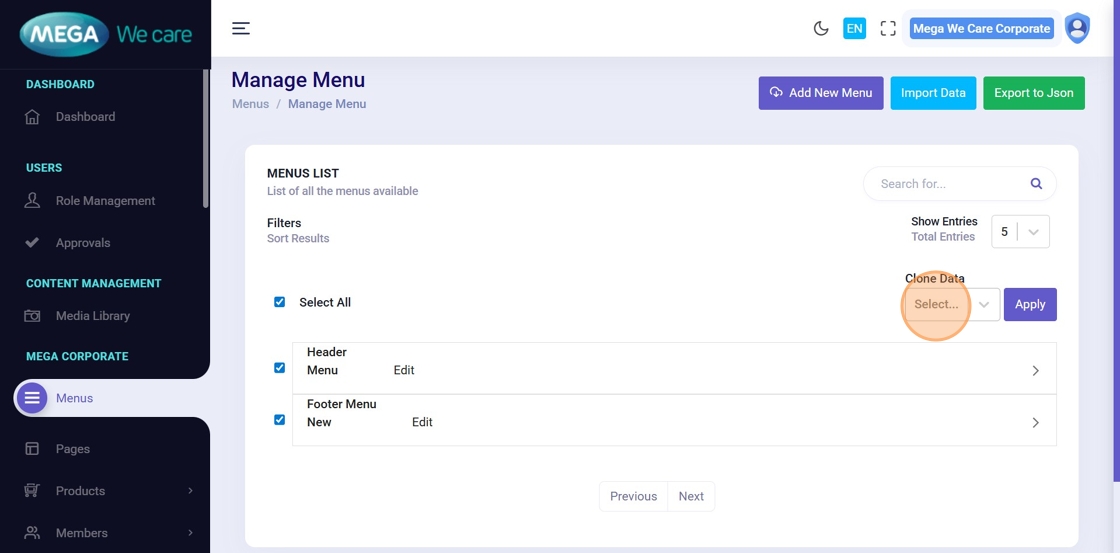
Step 11: Choose Clone Data Option
Open the Clone Data dropdown.
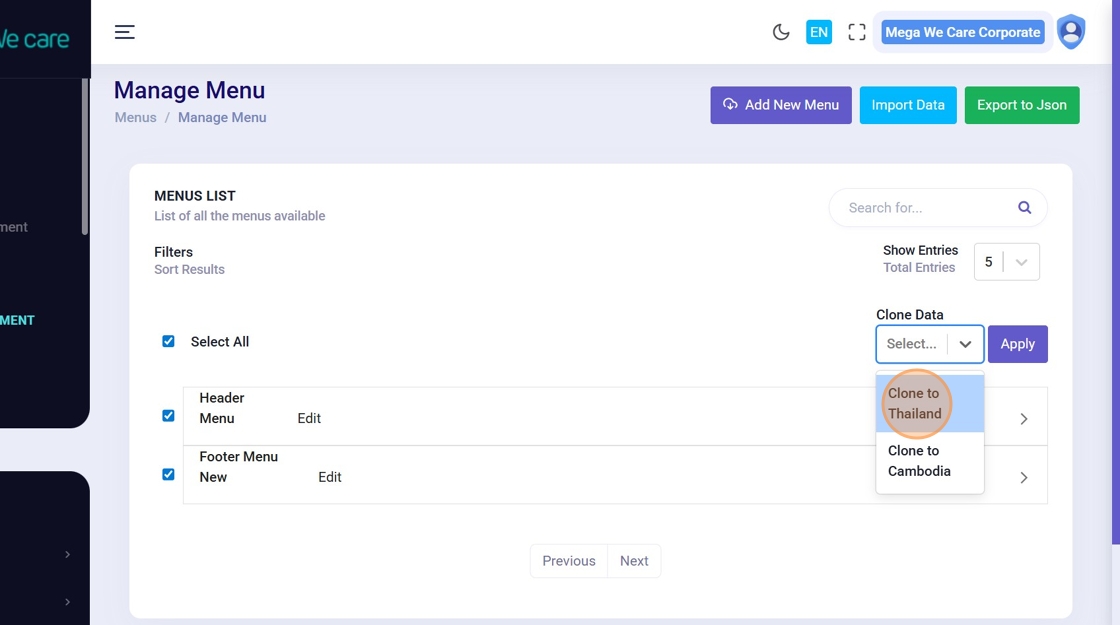
Step 12: Select Target Language Database
Choose the language database where content should be cloned.
Step 13: Clone the Data
Click Apply to clone the selected content.
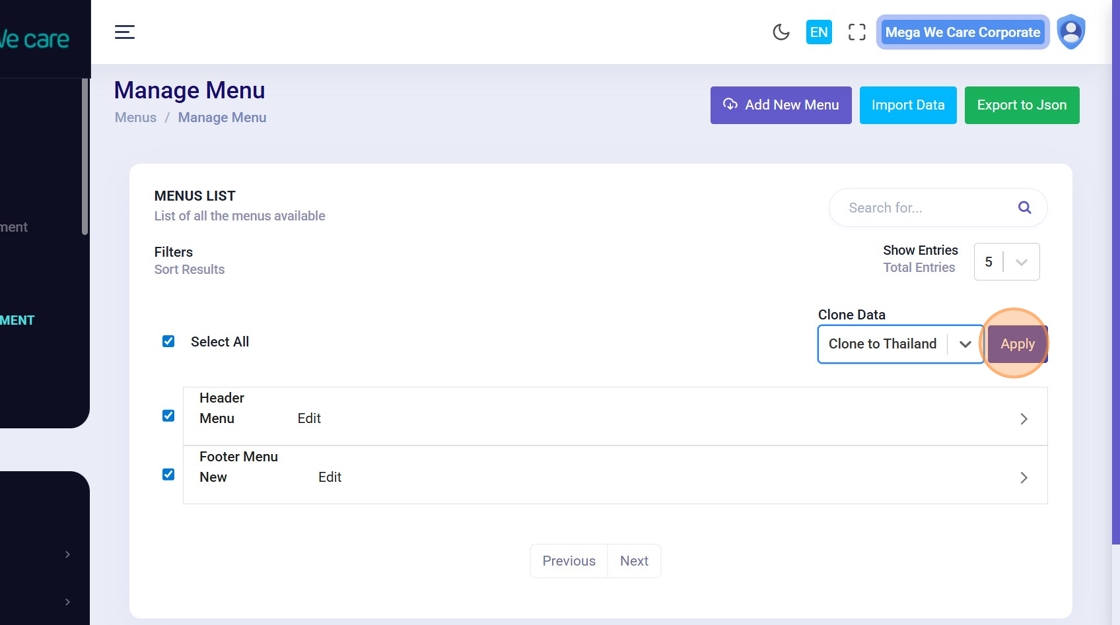
Step 14: Confirm Cloning
A confirmation popup appears once cloning is complete.
Click Close to finish.
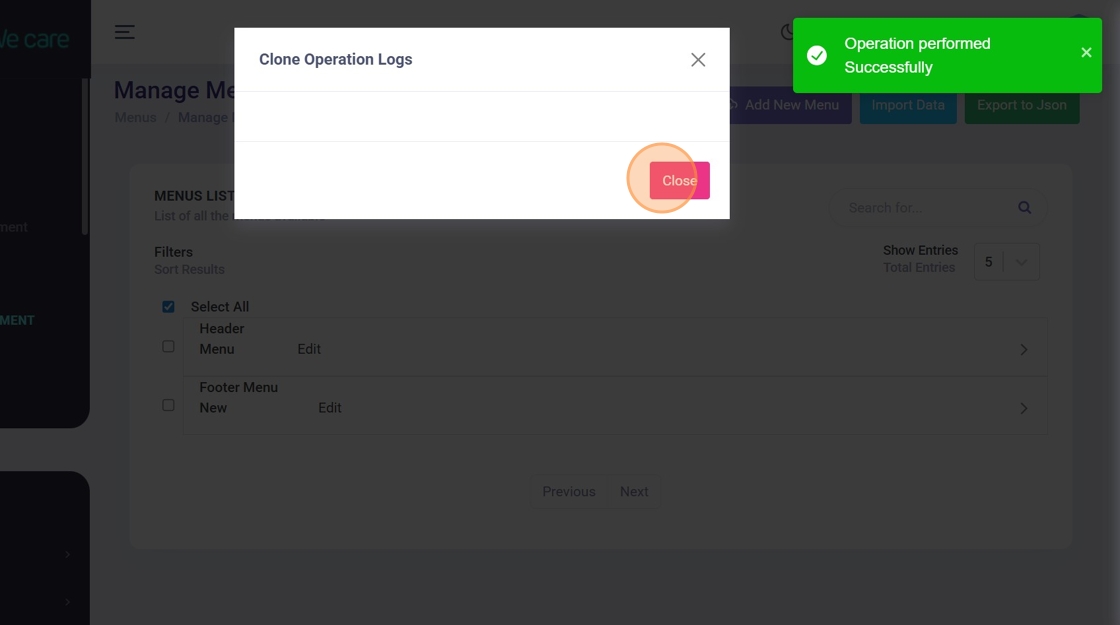
Edit Translated Content
Step 15: Switch Language Tabs
Use the Language Tabs (EN / KH / TH / etc.) to switch between databases.
Each tab represents a separate MongoDB database.

Step 16: Update Translated Content
Click Edit to update content (menus, pages, labels) for the selected language.
🛡️ Changes affect only the active language databaseThe original language remains unchanged.
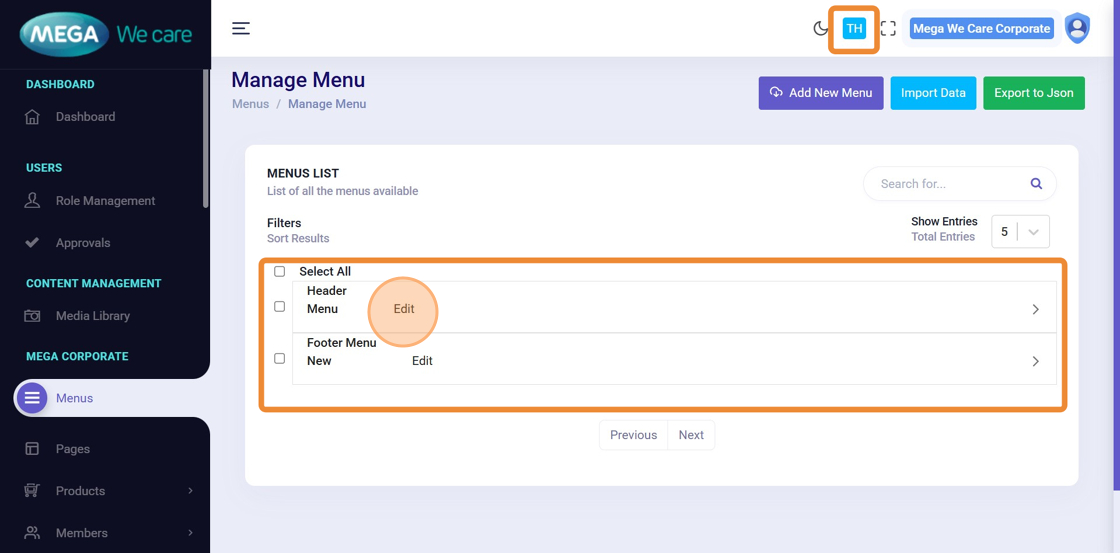
Important Notes
- Always clone content before translating
- Never mix content across language tabs
- Verify language selection before editing
- Make sure you work on only one language at a time in a single browser session. Using multiple languages in the same session can cause content to be mixed between languages. Example: If you edit content for two languages (such as English and Thailand or Cambodia) in the same browser session or open them in different tabs at the same time, it may cause content errors or language data to mix. To avoid this, always work on one language at a time and use a new browser session or an incognito window when switching languages.
Summary
By using this approach, users can create separate databases for each language or country, safely copy existing content into new language databases, edit translations without affecting the original language, apply the same workflow across all sections, and easily scale websites globally with clean and well-structured multilingual data. This ensures accurate translations, data safety, and long-term scalability for multilingual websites.